
The Best Digital Planner for iPad for ADHD (2027 Guide)
You’ve probably tried a paper planner that ended up in a drawer, or a planner app that took longer to set up than to use. With ADHD, the problem is rarely effort. It’s friction. Every extra tap, scroll or decision is one more reason to skip planning today.
A hyperlinked digital planner on your iPad cuts most of that friction. You write with your Apple Pencil like on paper, but every page is one tap away. This guide covers what to look for, how to set one up in about 10 minutes and how to keep using it after the first week.
Quick answer: The best digital planner for iPad for ADHD is a hyperlinked PDF planner you open in GoodNotes or Notability, with short daily pages: a Top 3, a brain dump, loose time blocks and an easy way to restart after missed days. Try the free 31-page ADHD Lite planner first, then move to the full 2027 ADHD Planner if it fits.
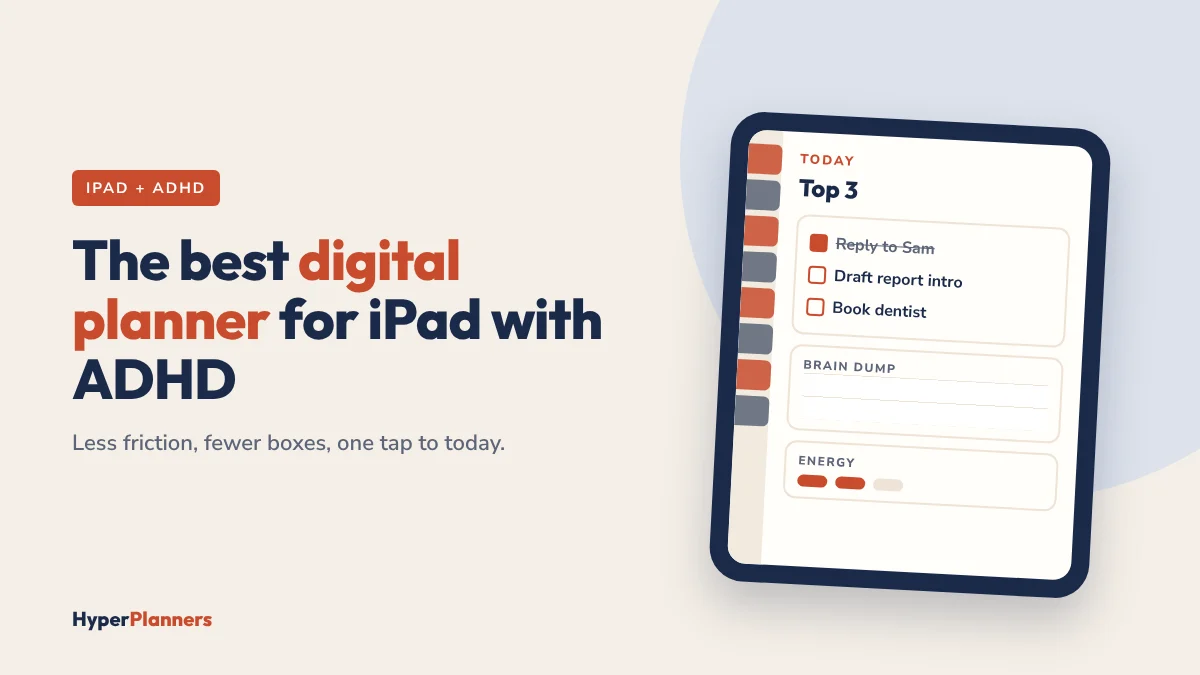
Why an iPad Planner Works Well for ADHD
Paper planners and apps each fail ADHD brains in their own way. Paper is easy to start but hard to navigate, and a messy page can make you avoid the whole book. Apps are tidy, but they pile on notifications, settings and features you never asked for.
An iPad planner sits in the middle:
- Handwriting helps you focus. Writing with a pencil is slower than typing, which makes you choose what really matters today.
- Hyperlinks remove scrolling. Tap a tab and you’re on today’s page. No hunting through 300 pages.
- Mistakes are cheap. Erase, move or duplicate a page in seconds. A bad week doesn’t ruin the planner.
- Everything lives in one place. Your iPad is already with you, so your planner is too.
If you’re still deciding between planner types, our guide to the best planner for ADHD adults compares paper, digital and app options side by side.
What to Look for in a Digital Planner for iPad with ADHD
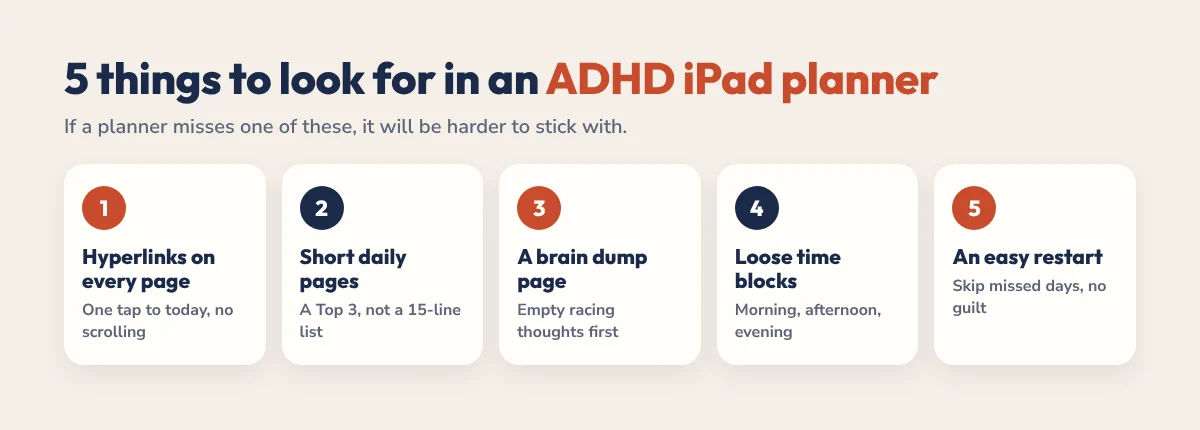
Most digital planners look beautiful in the preview. Fewer are easy to use on a busy, distracted Tuesday. Check for these five things before you buy:
- Hyperlinks on every page. Tabs for months, weeks and days, plus a link back to today. Read what a hyperlinked planner is if you’re new to them.
- Short daily pages. A Top 3 instead of a 15-line to-do list. Fewer boxes means less pressure.
- A brain dump page. Somewhere to empty racing thoughts so they stop competing with today’s tasks.
- Loose time blocks. Morning, afternoon and evening work better than hourly slots if time blindness is a struggle.
- An easy restart. Undated or easy-to-skip pages, so missed days don’t turn into a reason to quit.
Nice extras: an energy check, simple habit trackers and a weekly review page. Anything beyond that is optional, and often a distraction.
GoodNotes or Notability for an ADHD Planner?
Both apps open hyperlinked PDF planners and both work well with an Apple Pencil. The best one is usually the one you already have.
| GoodNotes | Notability | |
|---|---|---|
| Best for | Handwriting and fast navigation | Audio notes and mixed media |
| Hyperlinks | Work smoothly in the default view | Work well; check your view settings |
| Learning curve | Very easy | Easy |
| Good fit if | You mainly plan by hand | You also record lectures or meetings |
Most people with ADHD find GoodNotes the easier place to start. For a deeper look, read GoodNotes vs Notability for ADHD. Using an Android tablet instead? The same planners work there too: see our Android digital planner guide.
How to Set Up Your iPad Planner in 10 Minutes
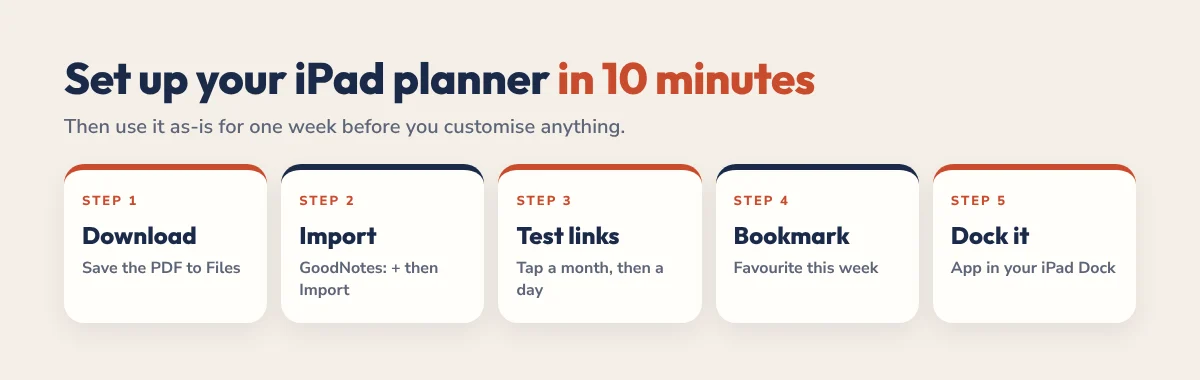
- Download the PDF. Save it to Files on your iPad.
- Import it into your app. In GoodNotes, tap the + button, choose Import and pick the PDF. Our step-by-step guide to importing a planner into GoodNotes covers every option.
- Test the links. Make sure you’re in read or view mode, then tap a month tab and a day.
- Bookmark today. Add a bookmark or favourite to this week’s page so you land there every time.
- Add it to your Dock. Put GoodNotes or Notability in your iPad Dock so your planner is one tap from anywhere.
That’s it. Don’t customise covers, stickers or colours yet. Use it as-is for one week first.
How to Use It Without Abandoning It
The setup is the easy part. Here’s what keeps an iPad planner in your routine past week two:
- Start with one view. Pick daily or weekly pages and ignore everything else for seven days.
- Keep it to a Top 3. Three tasks you can actually finish beat twelve that make you feel behind.
- Plan once, check in twice. Five minutes on Sunday for the week, two minutes each morning for the day.
- Brain dump first. When you feel frozen, empty your head onto the brain dump page, then pick one small step. Our ADHD task paralysis guide has more ways to get unstuck.
- Skip, don’t catch up. Missed three days? Go straight to today. Never fill in the past.
Want a simple routine to follow? Our ADHD daily planner guide walks through a 5-minute morning plan.
Mistakes That Kill Most iPad Planner Systems
- Using every feature on day one. Add a new section only after two weeks of steady use.
- Decorating before planning. Stickers and covers are fun, but they can replace the actual planning.
- Writing everything down. Your planner is for priorities. Keep fixed appointments in a calendar app.
- Buying a new planner after a bad week. A fresh start feels good for two days. Restarting on the same planner builds the habit.
Our iPad Planners for ADHD
We design hyperlinked planners for ADHD brains. They open in GoodNotes, Notability and any PDF app, with no subscription.
- Free ADHD Lite: a 31-page hyperlinked planner for 2027 with a daily Top 3, brain dump and loose time blocks. Download it free.
- 2027 ADHD Planner: 490 hyperlinked pages with 365 daily pages, 53 weeks and 12 months, 4 themes and 72 covers, from $19, paid once. See the ADHD Planner.
- 2027 All-in-One Planner: 556 pages for work, home and goals, $25. See the All-in-One Planner.
- Academic Planner 2026-2027: 578 pages for students, from $19. Read our guide to the best digital planner for university students.
Prefer to start with a single page? Grab our free daily planner template or browse all our free downloads.
FAQ
What is the best digital planner for iPad for ADHD?
A hyperlinked PDF planner with short daily pages works best: a Top 3, a brain dump, loose time blocks and an easy restart after missed days. The HyperPlanners 2027 ADHD Planner is built around these features, and the free ADHD Lite lets you try the layout first.
Is GoodNotes or Notability better for an ADHD planner?
Both work well with hyperlinked planners. GoodNotes is usually easier for handwriting and fast navigation, while Notability is better if you also record audio notes. Pick the app you already use.
Do I need an Apple Pencil for a digital planner?
It’s strongly recommended. You can type into some planners, but handwriting with a stylus is what makes a digital planner feel like paper and helps you focus on fewer tasks.
Are digital planners good for ADHD?
Many people with ADHD find them easier to stick with than paper planners because hyperlinks remove scrolling, mistakes are easy to erase and the planner is always on the device they already carry.
Can I use the same planner on iPad and Android?
Yes. A PDF planner works in any PDF app with hyperlink support, so you can use it on an Android tablet with apps like Noteshelf, Samsung Notes or Xodo.