
Planner Basics
Updated on March 2026 | 8 min read
What is a
Hyperlinked Planner?
The Beginner’s Guide
You downloaded a digital planner. It looked beautiful. Then you spent five minutes scrolling to find today’s date. That’s the problem hyperlinked planners were built to solve, and once you try one, you won’t go back.
HyperPlanners
Digital Planning Guides
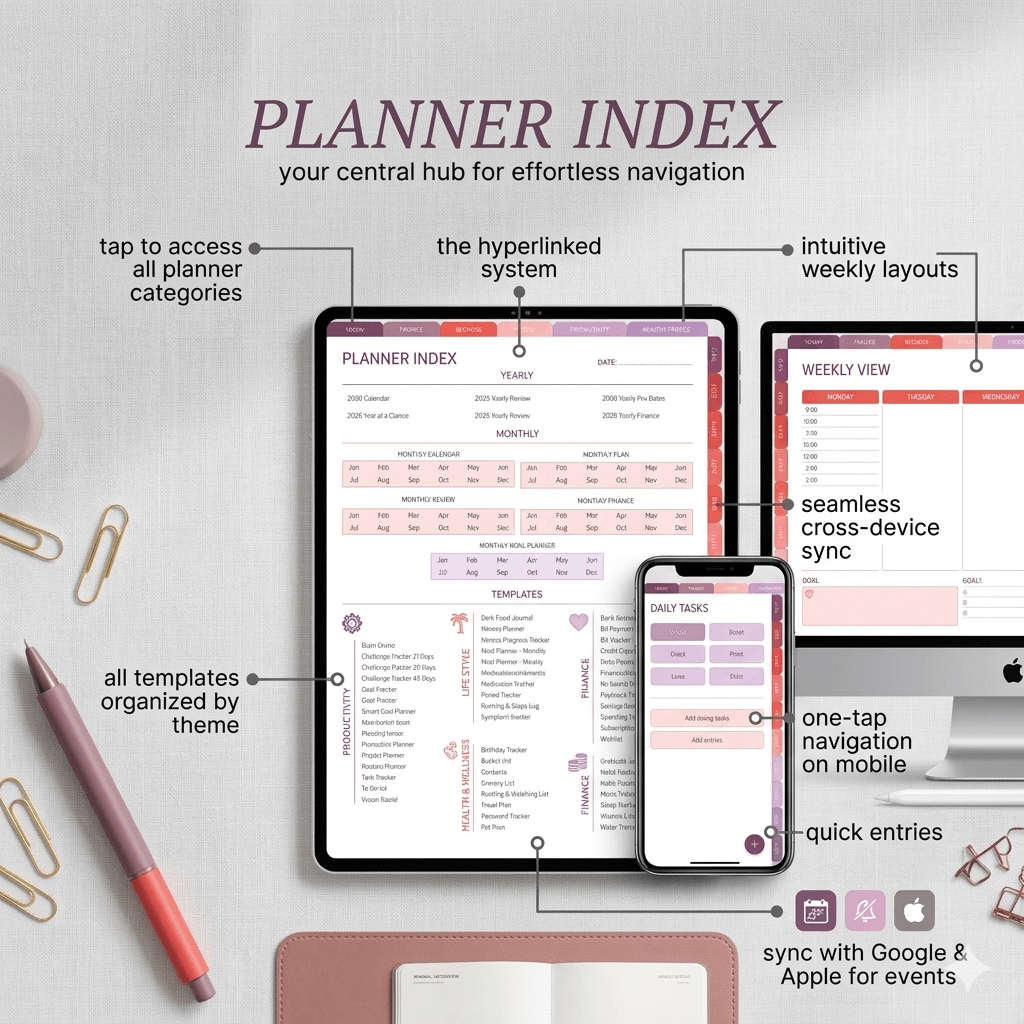
A hyperlinked planner isn’t just a digital PDF, it’s a planning system with built-in navigation. Tap a tab, tap a date, tap a button and you’re there. No scrolling. No searching. No friction.
What exactly is a hyperlinked planner?
A hyperlinked planner is a PDF file with clickable navigation links embedded throughout, the same technology as links on a website, but inside your planner.
Instead of manually scrolling through 365+ pages to find June 15th, you tap a button and land there instantly. Instead of hunting for your habit tracker, you tap a tab and you’re there in one second.
Think of it like a book where every chapter title, every date, and every section header is also a teleport button, one tap and you’re exactly where you need to be.
Hyperlinked vs. static planners
Not all digital planners are the same. Most planners sold as PDFs are static they look exactly like a paper planner digitised. No shortcuts. No navigation. Just scroll.
Monday morning. You need today’s page.
– Open planner app on iPad.
– Scroll… scroll… looking for today.
– Find December. Wrong week. Scroll more.
– Finally find Monday. Want to check Friday?
– Scroll forward four pages. Lose your place.
– Frustrated. Close the app.
Same Monday morning.
– Open planner app on iPad.
– Tap “Today” → Monday, instantly.
– Review your three priorities.
– Tap “Week” → see the full week.
– Tap Friday → check the conflict.
– Tap back → return to Monday. Done.
| Feature | Hyperlinked | Static PDF |
|---|---|---|
| Clickable navigation | ✓ Yes | ✗ No |
| Jump to any date | ✓ One tap | ✗ Scroll |
| Today button | ✓ Every page | ✗ None |
| App-like experience | ✓ Smooth | ✗ Document-like |
| Best for daily use | ✓ Yes | ✗ Print only |
Planning with ADHD? Read: Hyperlinked Digital Planner for ADHD: why it works
How does it actually work?
When a planner creator designs a hyperlinked PDF, they place invisible clickable areas called hotspots on top of buttons, tabs, and dates. When you tap one, the PDF jumps to a specific page number.
You don’t configure anything. The links are already built-in. You just tap.
💡 The one setting to know
In GoodNotes, hyperlinks only activate in Read-Only mode tap the crossed-out pen icon in the toolbar. Switch back to pen mode when you want to write. Every other app uses a hand or selection tool.
Who should use one?
Hyperlinked planners work for anyone who plans digitally. But they’re particularly powerful for:
Step 1:
ADHD & executive function
When switching between views takes one tap instead of 30 seconds of scrolling, planning becomes something you actually do. Every morning.
Step 2:
iPad & GoodNotes users
Hyperlinked planners are built for touch. Apple Pencil or fingertip, every link activates the same way. Import in minutes, plan the same day.
Step 3:
Students
Classes, deadlines, projects, all in one file. Jump between your weekly overview and individual subject pages without losing your place.
Step 4:
Professionals & freelancers
Budget tracker, daily structure, goal pages, review your whole month in one view. No separate app needed for any of it.
Which apps support hyperlinks?
Any PDF annotation app with hyperlink support works. These are the most popular:
| App | Device | Price | Hyperlinks |
|---|---|---|---|
| GoodNotes 5 & 6 | iPad – Mac | $9.99 once | ✓ |
| Notability | iPad – Mac | Freemium | ✓ |
| Xodo PDF | Android – Windows | Free | ✓ |
| PDF Expert | iPad – Mac | $79.99 | ✓ |
| Samsung Notes | Android tablets | Free | ✓ |
| Adobe Acrobat | Windows – Mac | Free (reader) | ✓ |
Setting up on a new device? Read the full step-by-step: How to use a digital planner on iPad & Android
How to get started in 4 steps
Step 1:
Download the planner PDF
Purchase or use your free code, the PDF downloads instantly. Save it to your Files app or Google Drive.
Step 2:
Import into your app
Open GoodNotes or Xodo, tap Import, select the file. It becomes a notebook automatically, no configuration needed.
For a full step-by-step walkthrough see: How to import a digital planner into GoodNotes on iPad
Step 3:
Switch to Read-Only mode
In GoodNotes, tap the crossed-out pen icon. This activates all hyperlinks, tap any tab or date to test it.
Step 4:
Tap around and explore
Tap the monthly calendar. Tap a date. Tap a section tab. Tap back. That’s the whole system, you’ve mastered it in 60 seconds.
The 2027 All-in-One Planner: 556 hyperlinked pages.
Daily, weekly, monthly, goals, budget, and habits. Every section one tap away on download. Works on every device you already own.
Setup Guide
How to Import Your Planner into GoodNotes on iPad
Step-by-step visual guide. From download to first tap in under 5 minutes.
Planner basics
Hyperlinked vs. Static Planners | The Full Comparison
Side-by-side breakdown of every difference. Which one is right for you?
Productivity
Five Digital Planner Habits That Actually Stick
The daily routines that turn a downloaded planner into a system you actually use.