
How to Use a Digital Planner on iPad and Android: A Beginner’s Setup Guide
You downloaded your first digital planner, opened it and now you’re looking at a PDF wondering what to do next. That’s completely normal. A digital planner only clicks once you know three things: which app to use, how to switch between tapping links and writing, and how to fit it into your day.
This guide walks you through all of it, step by step, for iPad and Android, with a 10-minute setup, a simple daily routine and fixes for the most common problems. If you want detailed steps for one app, see our GoodNotes import guide.
Quick answer: To use a digital planner, download the PDF, open it in a note-taking app (GoodNotes or Notability on iPad, Xodo or Samsung Notes on Android), and switch between view mode to tap the hyperlinks and pen mode to write. Start with one view, daily or weekly, spend 5 minutes a day on it and duplicate or delete pages as you go. A stylus helps but isn’t required.
What You Need to Get Started
- A tablet or phone. iPad, Android tablet, Windows tablet or even a phone works.
- A PDF annotation app. GoodNotes, Notability, Xodo, Samsung Notes, Noteshelf or similar.
- A digital planner PDF. Ideally hyperlinked, so you can tap between pages.
- A stylus (optional). An Apple Pencil or any compatible stylus makes writing easier, but your finger works too. See our guide to the best iPad accessories for digital planning.
New to the idea of hyperlinks? Read what a hyperlinked planner is first.
Which App Should You Use?
| Device | Best apps | Cost |
|---|---|---|
| iPad | GoodNotes, Notability, Noteshelf | Free versions, paid upgrades |
| Android tablet | Xodo, Samsung Notes, Noteshelf | Free options available |
| Windows tablet | Xodo, Drawboard PDF | Free options available |
| Phone | Xodo, GoodNotes, Notability | Free options available |
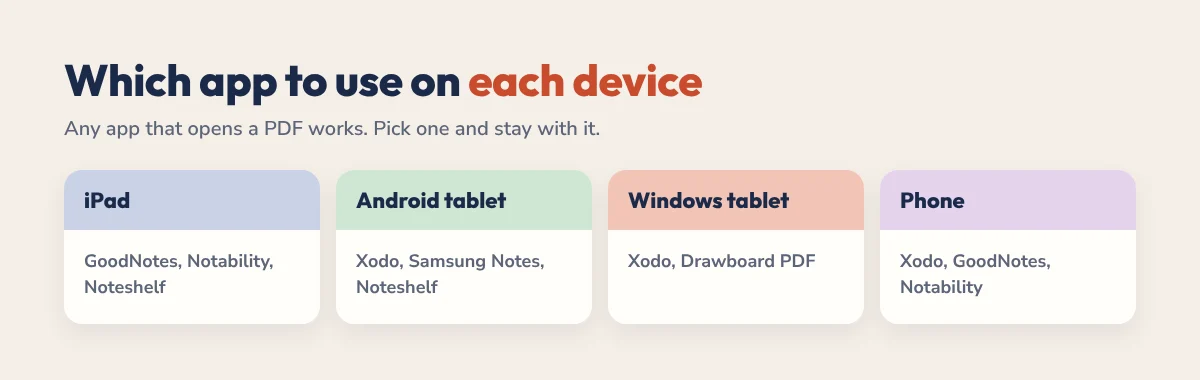
Pick one app and stay with it. Switching later means moving your planner and notes, which is a hassle. Compare the options in our best digital planning apps guide.
How to Use a Digital Planner on iPad
- Save the PDF from your email or download link to the Files app or iCloud Drive.
- Import it into GoodNotes (tap the plus button, then Import) or Notability (tap Import and choose the file).
- Open the planner and find the index or year overview.
- Switch to read-only or view mode and tap a month or day to test the links.
- Switch to the pen to write, then back to view mode to move around.
Detailed step-by-step guides: GoodNotes and Notability.
How to Use a Digital Planner on Android
- Install Xodo or open Samsung Notes if you have a Galaxy tablet.
- Download the PDF to your Downloads folder or Google Drive.
- Open it in the app. In Xodo, tap Browse and select the file.
- Use the hand or view tool to tap hyperlinks.
- Switch to the pen and highlighter to write.
Xodo also runs on Windows, so the same file works across devices. Our Android digital planner guide covers more apps and tips.
View Mode vs Pen Mode: The One Thing to Learn
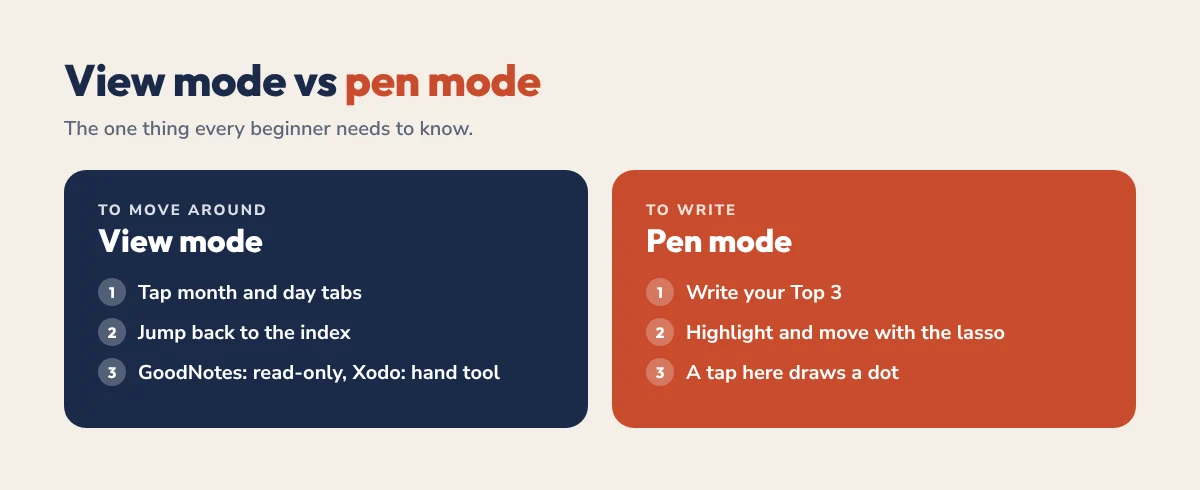
Almost every beginner question comes down to this. In pen mode, a tap draws a dot. In view or read-only mode, a tap follows the link. So:
- To navigate: switch to view mode (GoodNotes: read-only toggle, Xodo: hand tool) and tap tabs.
- To write: switch to the pen.
- Tip: if a tap leaves a dot instead of jumping, you’re still in pen mode.
Daily or Weekly View: Which to Start With?
Most hyperlinked planners have yearly, monthly, weekly and daily pages. Using all of them from day one is the fastest way to fall behind. Start with one:
- Weekly view if your days are fairly predictable and you like seeing the whole week at once.
- Daily view if your days are busy or change a lot and you need room for a Top 3, times and notes.
- Monthly view only for birthdays, deadlines and appointments, not daily tasks.
After two or three weeks, add a second view if you feel something is missing.
Set It Up in 10 Minutes
- Rename the file so you can find it, for example “Planner 2027”.
- Add it to favourites or the app’s home screen.
- Pick one view to start: daily or weekly.
- Choose two pens: one colour for tasks, one for notes. Add a highlighter.
- Fill in your first week: appointments, three goals and today’s Top 3.
- Set a daily reminder on your phone to open the planner at the same time each day.
A Simple Daily Routine
- Tap to today from the index or month tabs.
- Write your Top 3 for the day.
- Add appointments and anything with a time.
- Brain dump stray tasks onto a notes page.
- At night, tick off what’s done and move the rest.
Need a routine to start from? Try our free daily schedule builder, or read our weekly planner guide for the weekly side.
Tips That Make Digital Planning Easier
- Duplicate pages you use a lot, like notes or brain dump pages.
- Delete sections you never use so the planner feels lighter.
- Use the lasso tool to move tasks to another day instead of rewriting them.
- Back up your planner to iCloud, Google Drive or Dropbox every week.
- Keep a copy of the blank PDF in case you want to start fresh.
Troubleshooting
- Links don’t work? You’re probably in pen mode. Switch to view or read-only mode.
- Planner looks blurry? Zoom out fully, or re-import the original file.
- App is slow? Large planners can lag on older tablets. Close other apps or split the planner by quarter.
- Want it on two devices? Use the same app on both with cloud sync turned on.
Start With a Free Planner
The easiest way to learn is with a planner you don’t mind experimenting on. Our free 2027 planners are fully hyperlinked and work in GoodNotes, Notability, Xodo and any PDF app: the free All-in-One planner for everyday life, ADHD Lite for short, focused days and a free academic planner for students. Find them all on our free downloads page.
Ready for a full year? The 2027 All-in-One Planner has 556 hyperlinked pages, and the ADHD Planner starts at $19. Not sure which fits? Take the 60-second planner quiz.
Digital Planner Setup FAQ
How do I use a digital planner?
Open the PDF in a note-taking app like GoodNotes, Notability or Xodo. Use view mode to tap the links and move between pages, and pen mode to write. Start with one view and spend a few minutes on it each day.
Why aren’t my planner links working?
You’re most likely in pen or edit mode, where a tap draws instead of following the link. Switch to view or read-only mode and tap again.
Can I use the same digital planner on iPad and Android?
Yes. Use an app that runs on both, like Xodo, or keep the file in cloud storage. Your handwriting syncs only if you use the same app with cloud sync.
Do I need an Apple Pencil to use a digital planner?
No. Your finger works, and you can also type with a text box. A stylus just makes handwriting neater and faster.
What is the best app for a digital planner?
GoodNotes and Notability are the most popular on iPad. Xodo and Samsung Notes are great free options on Android. All of them support hyperlinked planners.
Your First Five Minutes
Import your planner, tap to today and write three things you want to get done. That’s it. Everything else in this guide will feel natural after a week of doing just that.