
Android Digital Planner: Best Apps and Setup Guide (2027)
Scroll through digital planner videos and it’s all iPads, GoodNotes and Apple Pencils. If you own a Samsung Galaxy Tab or another Android tablet, it’s easy to wonder if any of this works for you.
It does. A digital planner is just a PDF file with clickable links, and Android has several good apps that open it, with stylus support and working hyperlinks. This guide covers the best apps, how to set up your planner in about 10 minutes and which stylus to use.
Quick answer: To use a digital planner on Android, download a hyperlinked PDF planner and open it in a PDF note app such as Xodo (free), Samsung Notes (free on Galaxy tablets), Noteshelf or GoodNotes for Android. Write with a stylus like the S Pen and tap the tabs to jump between pages. Start with our free 2027 planner to test it on your tablet.
What Kind of Digital Planner Works on Android?
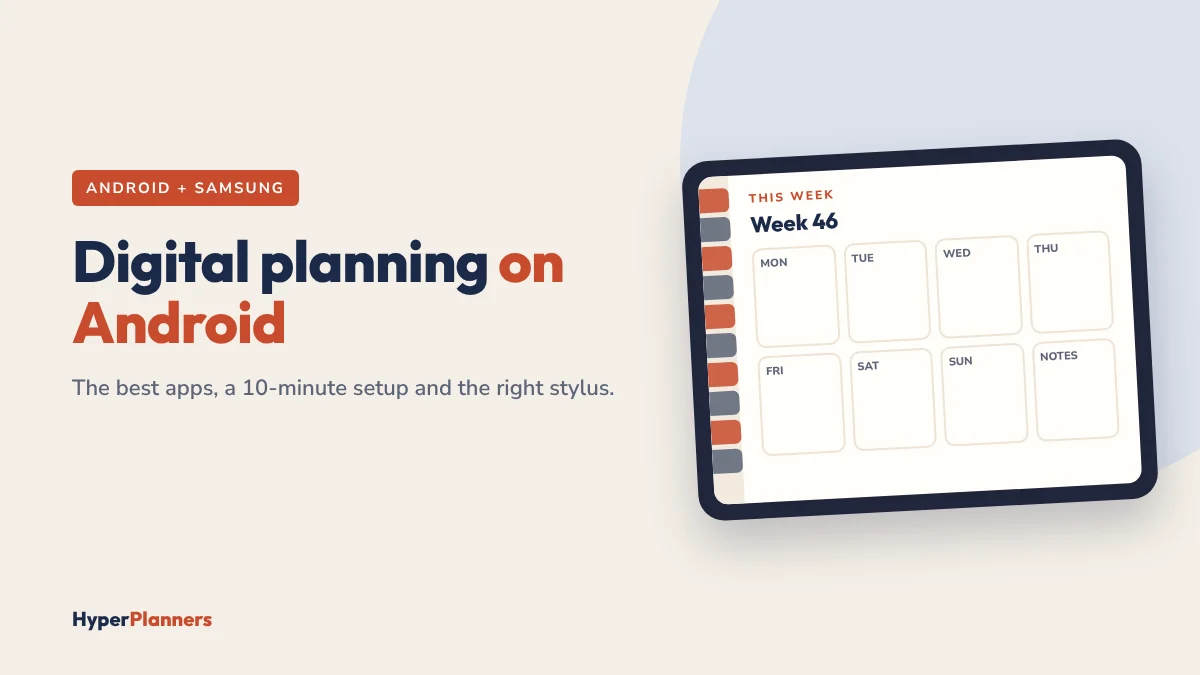
You need a hyperlinked PDF planner: a PDF with clickable tabs for months, weeks and days. PDF is a universal format, so the same file works on Android, iPad and a laptop.
The app is just the container. Your planner stays the same file whether you open it in Xodo, Samsung Notes or Noteshelf, so you can switch apps later without buying a new planner. New to this? Read what a hyperlinked planner is.
Best Android Digital Planner Apps
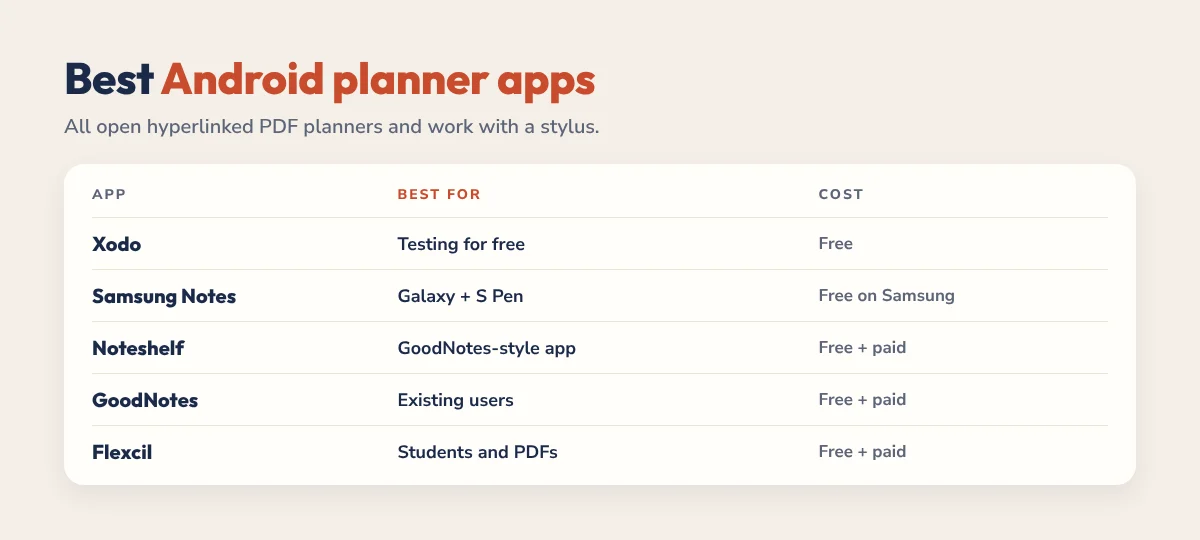
These are the apps most Android planners use. All of them let you write on PDFs with a stylus.
1. Xodo: Best Free Option
Xodo is a free PDF reader and annotator that handles large hyperlinked planners well. Links respond when you tap them, and handwriting is solid. It’s the easiest way to test a planner before paying for anything.
2. Samsung Notes: Best for Galaxy Tablets
Samsung Notes comes free on Galaxy tablets and is tuned for the S Pen, so writing feels natural. It imports PDFs directly. Most people find planner links work in recent versions. If tabs don’t respond for you, open the same file in Xodo.
3. Noteshelf: Closest to the iPad Experience
Noteshelf runs on Android, iPad and Windows, with smooth handwriting, notebooks and good stylus response. It’s a strong pick if you want a GoodNotes-style app on Android or switch between devices. Check the Play Store for its current free and paid options.
4. GoodNotes for Android: If You Already Use GoodNotes
GoodNotes now has an Android app, so the “GoodNotes is Apple-only” advice is out of date. Support for links in imported PDFs arrived later than on iPad, so test your planner’s tabs with a free planner before you commit.
5. Flexcil: Good for Study Notes
Flexcil combines PDF annotation with note-taking, which suits students who read and mark up PDFs alongside planning.
| App | Best for | Cost |
|---|---|---|
| Xodo | Testing for free | Free |
| Samsung Notes | Galaxy tablets with S Pen | Free on Samsung |
| Noteshelf | A GoodNotes-style app on Android | Free version, paid upgrade |
| GoodNotes for Android | Existing GoodNotes users | Free plan, paid plans |
| Flexcil | Students marking up PDFs | Free version, paid upgrade |
Prices and plans change often, so check the Play Store before you pay. For a broader look, see our guide to the best digital planner apps.
How to Set Up a Digital Planner on Android
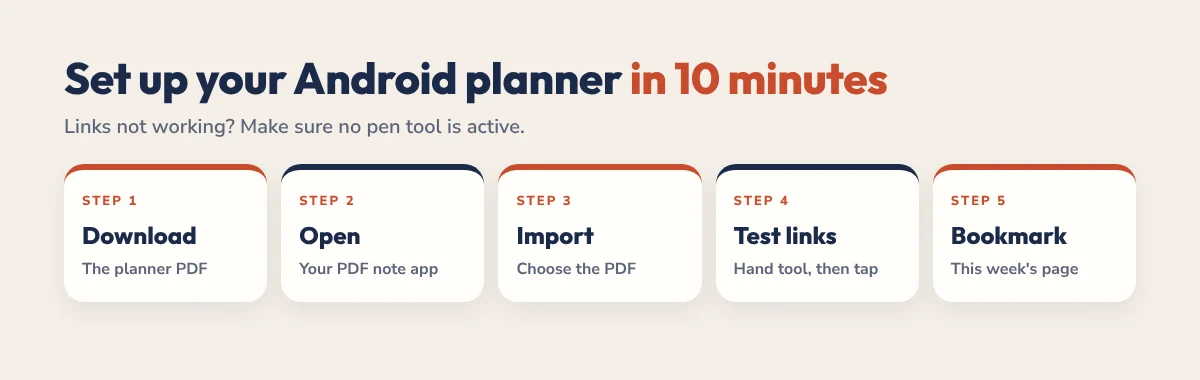
- Download the PDF. It saves to your Downloads folder by default.
- Open your app. Launch Xodo, Samsung Notes or Noteshelf.
- Import the planner. Tap Open or Import and choose the PDF from Downloads.
- Test the links. Switch to the hand, view or read tool, not the pen, then tap a month tab. It should jump straight to that page.
- Bookmark this week. So the planner opens where you need it.
Links not working? Re-download the original PDF, make sure no pen tool is active and try the same file in Xodo. If it works there, the issue is the app, not the planner. Our guide on how to use a digital planner on iPad and Android has more troubleshooting.
Samsung Tablet or iPad for Digital Planning?
For planning alone, both work well. Your hyperlinked planner behaves the same on either.
- Samsung Galaxy Tab: many models include the S Pen in the box, often at a lower total price than an iPad plus Apple Pencil.
- iPad: more planner apps and templates, and better resale value.
- The real answer: use the tablet you already own. If you’re buying, choose by budget and which pen feels better in your hand.
Planning on an iPad instead? Read our guide to the best digital planner for iPad for ADHD.
Best Stylus for Android Planning
- Samsung S Pen: the best choice on Galaxy tablets, with pressure sensitivity and palm rejection. Many tablets include one.
- USI or brand styluses: some Android tablets support a specific active pen from the same brand. Check your tablet’s specs before buying.
- Cheap rubber-tip styluses: skip them. Thick tips make handwriting messy, and messy pages are pages you stop opening.
Planners That Work on Android
Our planners are hyperlinked PDFs, so they work in Xodo, Samsung Notes, Noteshelf and any PDF app. Buy once, no subscription.
- Free 2027 planners: ADHD Lite, Academic Lite and more, all hyperlinked. See the free downloads.
- 2027 ADHD Planner: 490 hyperlinked pages with a daily Top 3, brain dump and energy check, from $19. See the ADHD Planner.
- 2027 All-in-One Planner: 556 pages for work, home and goals, $25. See the All-in-One Planner.
- Academic Planner 2026-2027: 578 pages for students, from $19. See the Academic Planner.
Still comparing? See our guide to the best digital planners for every kind of user.
FAQ
Can you use a digital planner on Android?
Yes. Download a hyperlinked PDF planner and open it in a PDF note app such as Xodo, Samsung Notes, Noteshelf or GoodNotes for Android. You can write with a stylus and tap tabs to move between pages.
Does GoodNotes work on Android?
Yes. GoodNotes now has an Android app. Support for links in imported PDFs came later than on iPad, so test your planner with a free file first. Noteshelf and Xodo are good alternatives.
What is the best free digital planner app for Android?
Xodo is the best free option for hyperlinked planners. If you have a Samsung Galaxy tablet, Samsung Notes is also free and works well with the S Pen.
Why are my planner links not working on Android?
Usually a pen tool is active or the file was flattened. Switch to the hand or view tool, re-download the original PDF and test it in Xodo. If links work there, use that app or check your main app’s settings.
Is a Samsung tablet good for digital planning?
Yes. Galaxy tablets with the S Pen give natural handwriting, and Samsung Notes is free. For planning alone, a Samsung tablet works as well as an iPad, often for less money.