
Best iPad Accessories for Digital Planning (2026 Guide)
Disclosure: some links in this guide may be affiliate links. If you buy through them, we may earn a commission at no extra cost to you. We only recommend things that make planning easier. How we handle affiliate links. As an Amazon Associate I earn from qualifying purchases.
A digital planner only works if you actually open it. The right accessories make that easier: a pencil that’s always charged, a screen that feels good to write on and a case or stand that keeps your iPad ready on your desk instead of buried in a bag.
You don’t need much. This guide covers the few accessories that genuinely improve digital planning, what to skip and three starter kits for different budgets. New to digital planning? Start with our guide on how to use a digital planner on iPad or Android.
Quick answer: The best iPad accessories for digital planning are a stylus that works with your iPad (the Apple Pencil USB-C, or a budget option like an ESR digital pencil), a paper-feel screen protector such as Paperlike, a case with a pencil holder and, if you plan at a desk, a simple stand. Check your exact iPad model before buying a pencil, because each Apple Pencil only works with certain iPads.

1. A Stylus That Works With Your iPad
Handwriting is what makes a digital planner feel like a planner. You can tap with a finger, but writing your Top 3 and brain dump by hand is faster and easier to remember. The stylus is the one accessory you really need.
Apple Pencil: which one fits your iPad?
| Model | Price range | Best for | Works with |
|---|---|---|---|
| Apple Pencil (USB-C) | Mid-range | Most planners | iPad (A16 and 10th gen), iPad Air (4th gen and later), iPad mini (6th gen and A17 Pro), most iPad Pro models |
| Apple Pencil Pro | Premium | Heavy note-takers who want extra features | iPad Pro (M4 and M5), iPad Air (M2 and later), iPad mini (A17 Pro) |
| Apple Pencil (2nd gen) | Premium | Older iPad Air, mini and Pro models | iPad Air (4th and 5th gen), iPad mini (6th gen), older iPad Pro models |
| Apple Pencil (1st gen) | Mid-range | Older iPads | iPad (6th to 9th gen), older Air, mini and Pro models |
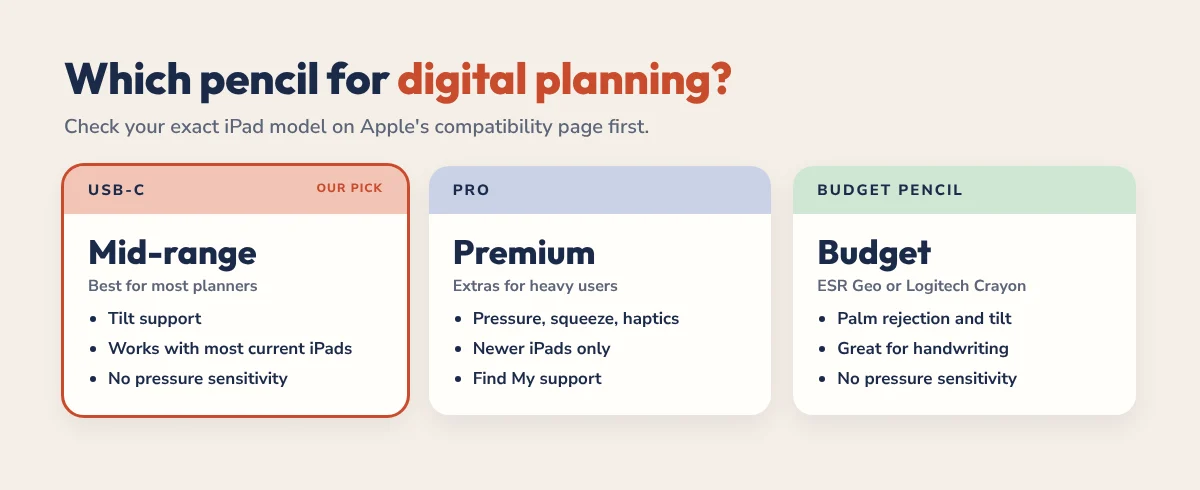
Our pick for planning: the Apple Pencil (USB-C). It doesn’t have pressure sensitivity, but for handwriting, ticking off habits and circling dates you won’t miss it. The Pencil Pro is lovely, but its extras (squeeze, barrel roll, haptics) matter more for art than for planning.
Always check your exact model on Apple’s Pencil compatibility page before you buy. You can find your model in Settings, General, About.
Budget alternatives to the Apple Pencil
- ESR digital pencil (budget): strong palm rejection and tilt support for much less than an Apple Pencil. Some ESR models add Find My or magnetic charging, so check that the listing matches your iPad.
- Logitech Crayon (mid-range): built on Apple’s own pencil technology, no Bluetooth pairing and very durable. A favourite in schools.
Neither has pressure sensitivity, which doesn’t matter much for planning. Both work well with GoodNotes and Notability.
On Android? Many Samsung Galaxy Tab S models include an S Pen in the box, so you may not need to buy a stylus at all. See our Android digital planner guide.
2. A Paper-Feel Screen Protector
Writing on bare glass feels slippery. A matte screen protector adds a little friction, so your handwriting looks neater and the pencil feels more like a pen on paper. For many people it’s the difference between writing in their planner and just tapping through it.
Paperlike is the best-known option and the one we’d start with. The current version, Paperlike 3, comes as a 2-pack, uses a guided installation that helps you avoid bubbles and works with all Apple Pencils (and the Logitech Crayon). It’s made for iPad mini, iPad, iPad Air and iPad Pro models.
- Pros: a real paper-like feel, neater handwriting, less glare and fingerprints.
- Cons: the screen looks very slightly less sharp, and textured protectors wear pencil tips down faster.
Tip: keep a spare pencil tip in your bag. Paperlike sells replacement tips, and Apple sells packs of tips too.
3. A Case With a Pencil Holder
One of the easiest ways to fall off a digital planner is a pencil that is lost or flat. A case with a built-in pencil holder solves both. Look for:
- A pencil slot or magnetic cover that keeps the pencil attached, and still lets it charge if your pencil charges magnetically.
- A folio cover that stands up at a writing angle, not only at a typing angle.
- Your exact iPad model in the listing. Cases are model-specific, even when iPads look the same.
Brands like ESR, Zugu and Apple’s own Smart Folio make well-reviewed options at a range of prices.
4. A Stand for Your Desk
Out of sight is out of mind, especially with ADHD. If your iPad lives in a drawer, your planner does too. A simple adjustable stand keeps it open on your desk, showing today’s page, so you see your Top 3 every time you look up.
Choose one that tilts low enough to write on comfortably, not just upright for video calls. Pair it with our time blocking on iPad guide to turn that always-visible page into a real plan for the day.
What You Can Skip
- Expensive keyboards. Great for typing, but planning is mostly handwriting.
- Lots of styluses. One good, charged pencil beats three cheap ones.
- Fancy planner sticker packs before you have a habit. Decorating can wait until planning sticks.
- Upgrading your iPad just to plan. Almost any iPad that works with an Apple Pencil runs a hyperlinked planner smoothly.
Three Starter Kits by Budget
| Kit | What’s in it | Budget level |
|---|---|---|
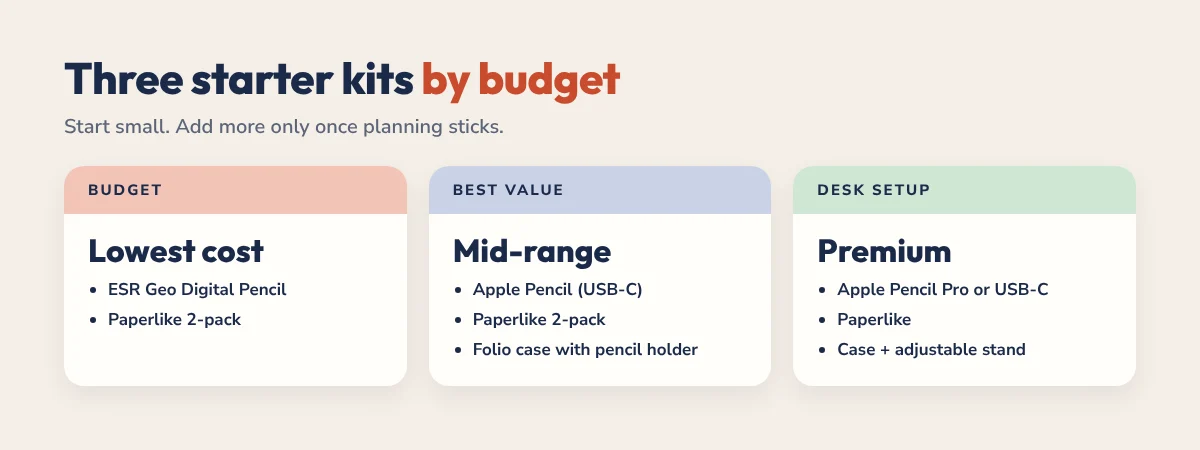
| Budget | ESR digital pencil + Paperlike 2-pack | Lowest cost |
| Best value | Apple Pencil (USB-C) + Paperlike 2-pack + a folio case with pencil holder | Mid-range |
| Desk setup | Apple Pencil Pro or USB-C + Paperlike + case + adjustable stand | Premium |
Prices change often, so check the current price on the retailer’s page before you buy.
Put Your Setup to Work
Accessories make planning easier, but the planner is what makes it work. Our hyperlinked planners open in GoodNotes, Notability and any PDF app, and every page is one tap away. Not sure which planner fits you? Take our 60-second planner quiz.
- 2027 ADHD Planner: 490 pages with a daily Top 3, brain dump and energy check, from $19.
- 2027 All-in-One Planner: 556 pages for work, home and goals, $25.
- Academic Planner 2026-2027: 578 pages for students, from $19.
Want to try one first? Grab a free planner from our free downloads and follow our guide to importing a planner into GoodNotes.
iPad Accessories FAQ
Do I need an Apple Pencil for a digital planner?
You don’t strictly need one, but a stylus makes digital planning much easier because you can write by hand. The Apple Pencil (USB-C) is the best value Apple option, and an ESR digital pencil is a good budget alternative.
Which Apple Pencil is best for digital planning?
For most people, the Apple Pencil (USB-C). It works with most current iPads and handles handwriting well. Choose the Apple Pencil Pro only if your iPad supports it and you want extras like squeeze and haptic feedback.
Is Paperlike worth it for digital planning?
For most people who write a lot, yes. It makes the screen feel more like paper, so handwriting is neater and more comfortable. The trade-offs are a slightly less sharp screen and faster wear on pencil tips.
Do cheap styluses work with GoodNotes?
Yes. Styluses with palm rejection, such as an ESR digital pencil or Logitech Crayon, work well with GoodNotes and Notability. They don’t support pressure sensitivity, which matters little for planning.
What iPad accessories do I need to start digital planning?
Start with a compatible stylus and a free digital planner. Add a paper-feel screen protector if writing on glass feels slippery, and a case with a pencil holder so your pencil is always with your iPad.