
Free Digital Planner for iPad 2027: Hyperlinked PDF Download
You bought an iPad partly to get organised. Now you want a planner on it that doesn’t cost another subscription. This guide shows you how to get a free digital planner for iPad, which app to open it in, and how to set it up so you actually keep using it.
It is part of our free digital planner collection, where you can compare all three free editions.
Quick answer: The free HyperPlanners iPad planner is a hyperlinked PDF dated for 2027. Download it from Gumroad at no cost, open it in GoodNotes, Notability, PDF Expert, Xodo or Adobe Acrobat, and tap the tabs to move between months, weeks and days. It works on any iPad that runs those apps, and you don’t need an Apple Pencil.
What You Get in the Free iPad Planner
It is a real hyperlinked planner, built to be used on a tablet screen rather than printed. You pick one of three free editions when you download: All-in-One Lite for everyday life, ADHD Lite for busy brains, or Academic Lite for students.
Every edition includes:
- A 2027 year at a glance page where every date is tappable
- All 12 monthly calendars with a focus box and a don’t-forget list
- Weekly spreads and daily pages linked to their month
- Tabs on every page, so you jump anywhere in one tap
- A single PDF file you keep for life, with no subscription
Want a closer look at each edition? Our free GoodNotes planner guide breaks down what is inside all three.
Which iPad App Should You Use?
The planner is a standard PDF, so you are not locked into one app. All of these open it with the links working, and all have a free version you can start with:
| App | Free version | Best for |
|---|---|---|
| GoodNotes | Yes, with limits | Handwriting, lots of pen and sticker options |
| Notability | Yes, with limits | Writing plus audio notes in the same file |
| PDF Expert | Yes, paid extras | Fast, clean PDF reading and simple notes |
| Xodo | Yes | A free option with no notebook limits |
| Adobe Acrobat Reader | Yes | Basic highlighting and typed comments |
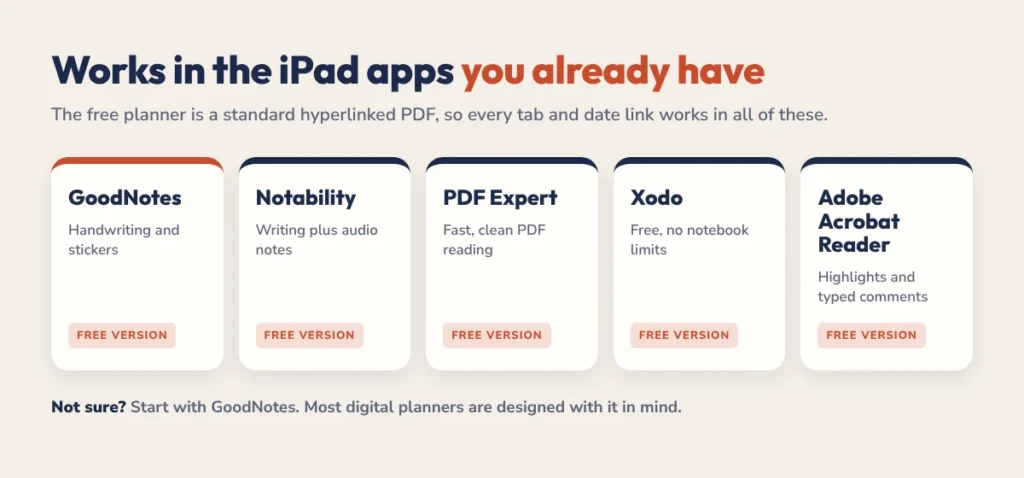
If you are not sure, start with GoodNotes. Most digital planners are designed with it in mind, and our GoodNotes import guide walks you through it. Torn between the two big apps? Read GoodNotes vs Notability.
How to Get the Planner onto Your iPad
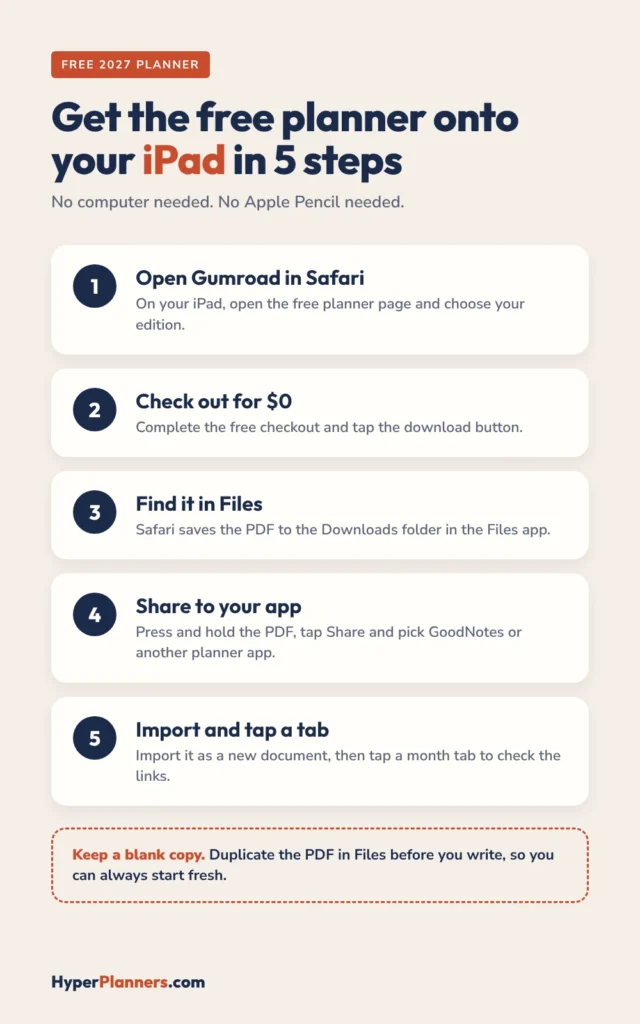
The easiest way is to download it on the iPad itself, so the file never has to travel between devices.
- Open the free planner page on Gumroad in Safari on your iPad and choose your edition.
- Complete the free checkout and tap the download button.
- Safari saves the PDF to the Files app, in your Downloads folder.
- Open Files, press and hold the PDF, tap Share and pick your planner app.
- In the app, choose to import it as a new document, then tap a month tab to check the links.
Downloaded it on your computer instead? Open the Gumroad email on your iPad and download it again there, or save the PDF to iCloud Drive and open it from the Files app.
Do You Need an Apple Pencil?
No. Every link and tab works with a finger tap, so you can navigate the whole planner without one. A stylus only matters if you want to handwrite. The Apple Pencil works best with iPad apps, but a cheaper third-party stylus is fine for a free planner. Most apps also let you type into text boxes if you would rather not write by hand.
It also works on any iPad model that can run the apps above, from an older standard iPad to an iPad Pro. Bigger screens make weekly spreads easier to read, but you don’t need a new iPad to start.
5 iPad Tips That Make the Planner Easier to Stick With
- Keep a blank copy. Before you write anything, duplicate the PDF in Files. If you want a fresh start mid-year, you already have one.
- Use one notebook, not many. Keep the whole planner as one document so every link stays connected.
- Put the app in your Dock. One tap to open the planner removes the friction that makes people skip planning.
- Check the links in viewing mode. If a tab doesn’t respond while a pen tool is active, switch your app to its read or view mode and tap again.
- Turn on your app’s backup. GoodNotes and Notability can back up to iCloud, so you won’t lose a year of plans if something happens to the iPad.
For a simple daily routine with the planner, the time blocking method in our time blocking guide fits neatly onto the daily pages.
Is an iPad Planner Better Than Paper?
It depends on how you plan. A paper planner is simple and has no battery, but it is easy to leave at home and hard to fix when plans change. An iPad planner fixes most of that:
- You can erase and move things. Erase cleanly, or use the lasso tool to move notes around a page instead of crossing them out.
- You never run out of pages. Duplicate a daily page when a day gets busy.
- It is always with you. Your planner lives on the device you already carry.
- Links replace flipping. One tap takes you to any month, week or day.
The trade-off is distraction. Notifications and other apps sit one swipe away. If that is a problem for you, turn on a Focus mode while you plan, or keep planning sessions short: ten minutes in the morning and five at night is enough.
Free vs Paid iPad Planners
The free edition is a complete planner for 2027, not a sample with locked pages. You might want the full version if you need more page types or more room:
| Planner | Pages | Price |
|---|---|---|
| Free Lite edition | 31 (ADHD Lite) | $0 |
| All-in-One Planner | 556 | $25 |
| ADHD Planner | 490 | $19 |
| Academic Planner (Aug 2026 to Aug 2027) | 578 | $19 |
Start free. If it sticks, the full planners use the same layout. To see how they compare with other brands, read our best digital planners 2026-2027 guide. Planning to use the planner on an Android tablet as well? See our Android digital planner guide. Planning for school or university? Try our free student planner.
Free iPad Planner FAQ
Is the free iPad planner really free?
Yes. There is no coupon code and no subscription. The free price is already applied at checkout, and the PDF is yours to keep.
Which iPad do I need?
Any iPad that can run GoodNotes, Notability, PDF Expert, Xodo or Adobe Acrobat. A newer or larger iPad is nicer to write on, but it is not required.
Can I use the planner without GoodNotes?
Yes. It is a standard hyperlinked PDF, so it works in Notability, PDF Expert, Xodo, Adobe Acrobat and other PDF annotation apps.
Does it work on iPhone too?
The PDF opens on iPhone in the same apps, but the pages are designed for a tablet screen. Most people plan on the iPad and only check the iPhone for quick look-ups.
Is the planner dated or undated?
It is dated for 2027, with real dates on the year page and all 12 monthly calendars, so you can start on 1 January with no setup.
Get Your Free iPad Planner
Download it on your iPad, open it in the app you already have, and plan your first week in under ten minutes.
Want every free option in one place? Visit the free digital planner page.