
Time Blocking on iPad: How to Set Up a Digital Time Blocking Planner
Paper time blocking has one big problem: plans change, and crossing out and rewriting a whole afternoon gets messy fast. On an iPad, you erase, move and duplicate pages in seconds. Your time blocking planner also lives on a device you already carry everywhere.
This guide shows you how to set up time blocking on iPad, step by step. New to the method itself? Start with our beginner’s guide to time blocking, then come back here for the iPad setup.
Quick answer: To time block on iPad, import a time blocking template PDF into GoodNotes or Notability, duplicate the daily page for each new day, and write your tasks into hour blocks. Color-code blocks with the highlighter, keep fixed events in Apple Calendar, and turn on a Focus mode during deep work blocks. You don’t need an Apple Pencil, but it makes writing easier. See our guide to the best iPad accessories for digital planning.
What You Need
- An iPad. Any model that runs GoodNotes or Notability works.
- A note-taking app. GoodNotes is the most popular choice for planners. See GoodNotes vs Notability if you are deciding.
- A time blocking template. Our free template has daily, weekly and loose time block pages, all hyperlinked.
- A stylus (optional). An Apple Pencil or a cheaper stylus makes handwriting easier, but you can tap and type with a finger.
Set Up Your Time Blocking Planner in GoodNotes
- Download the template on your iPad from Gumroad. It saves to the Files app.
- Import it into GoodNotes. Open the PDF, tap Share and choose GoodNotes, then import it as a new document. Our GoodNotes import guide has screenshots for every step.
- Keep a blank copy. Duplicate the whole document once, so you always have a clean master.
- Duplicate the Daily page each day. In the page thumbnails, open the menu on the Daily page and choose Duplicate. Write the date at the top.
- Bookmark the Weekly page. You will come back to it every Sunday.
Prefer a full year planner? Our free digital planner for iPad has dated daily pages for 2027 you can use the same way.
How to Time Block Your Day on iPad
1. Block by energy, not just by clock
Your energy changes through the day. Put your hardest task in your peak hours, usually the morning, meetings and collaborative work in the middle, and email and admin in the late afternoon. Your blocks should follow your energy, not fight it.
2. Color-code your blocks
Pick one highlighter color per type of block and keep a small key at the top of the page. It turns your day into a picture you can read at a glance:
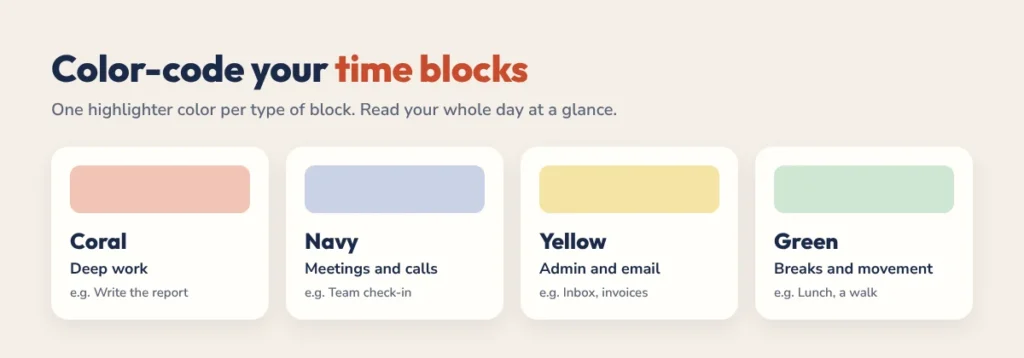
| Color | Block type | Example |
|---|---|---|
| Coral | Deep work | Write the report |
| Navy | Meetings and calls | Team check-in |
| Yellow | Admin and email | Inbox, invoices |
| Green | Breaks and movement | Lunch, a walk |
Use the same colors for your calendars in Apple Calendar, and your planner and calendar will read the same way when you look at them side by side. At the end of the week, flick through your daily pages: if there is barely any coral, deep work is getting squeezed out, and next week’s blocks should protect it.
3. Add buffers between blocks
Back-to-back blocks fall apart at the first delay. Leave 10 to 15 minutes after each deep work block, and keep one longer buffer in the afternoon for anything that runs over.
4. Send new tasks to the brain dump
New tasks will pop up all day. Write them in the brain dump box, not into your blocks. At the end of the day, decide which ones are real and give them a block tomorrow.
5. Re-block, don’t restart
When a block runs over, erase and move the rest of the day. That’s the advantage of digital: a changed plan takes ten seconds to fix, not a fresh page.
Three Block Sizes to Try
- The 90-minute block. 90 minutes on one task, then a 15-minute buffer. Good for deep work, 3 to 4 times a day at most.
- The 60-minute block. If 90 feels too long, use 60 minutes with a 10-minute buffer.
- The flexible block. Write two or three options in one block, like “Report OR slides OR email”, and pick based on your energy when the block starts. It is still structure, just with a choice built in.
If strict blocks never last past 10 am for you, the Loose Time Blocks page in the template splits the day into morning, afternoon and evening instead. Our time blocking for ADHD guide explains why that often works better.
Use Your Planner and Apple Calendar Together
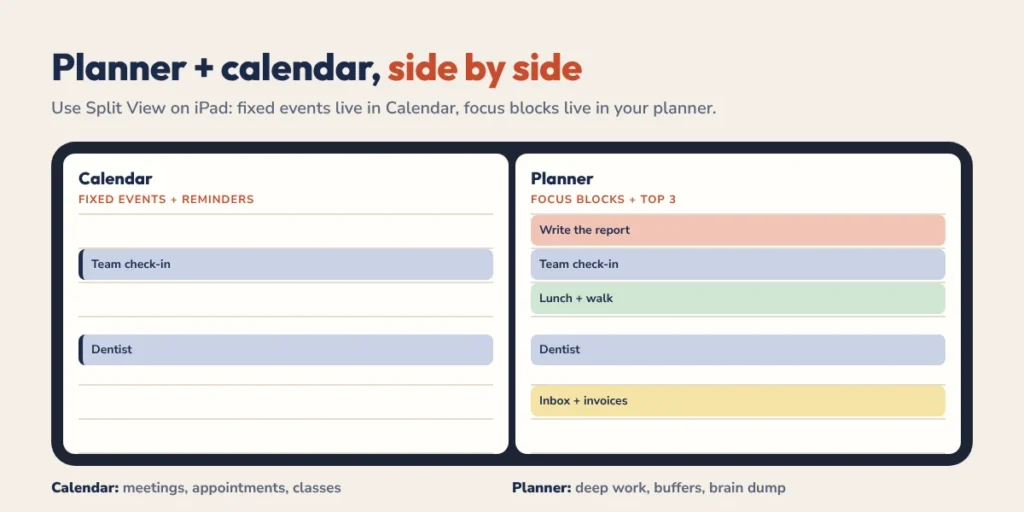
A PDF planner doesn’t send reminders, and a calendar app is a clumsy place to think. Use each for what it does best:
- Calendar: fixed events with a time and a place, like meetings, appointments and classes. Let it remind you.
- Planner: your focus blocks, Top 3, buffers and brain dump. This is where you plan the day.
On iPads that support multitasking, open Calendar and GoodNotes side by side in Split View when you plan. Copy the fixed events across, then block the rest of the day around them. If you would rather do everything in an app, see our roundup of the best time blocking apps.
iPad Tips That Keep You on Track
- Turn on a Focus mode during deep work. Silence notifications for the length of the block.
- Keep your planner app in the Dock. One tap to open it removes the excuse to skip planning.
- Plan the night before. Five minutes in the evening to block tomorrow means you start the day already knowing what to do.
- Do a weekly review on Sunday. Use the Weekly page to place your big tasks across the week before you block single days.
Time Blocking on iPad FAQ
What is the best app for time blocking on iPad?
GoodNotes is the most popular app for handwritten time blocking planners, and Notability is a strong alternative. If you want reminders and automatic scheduling, a calendar app works better, and many people use both.
Do I need an Apple Pencil to time block on iPad?
No. You can tap links and type into your planner with a finger. A stylus makes handwriting easier, and a third-party stylus works fine.
Can a PDF time blocking planner sync with my calendar?
No. A PDF planner doesn’t connect to Apple or Google Calendar. Keep fixed events in your calendar and plan your focus blocks in the planner, using Split View to see both.
How do I reuse a daily page in GoodNotes?
Open the page thumbnails, use the menu on the Daily page and choose Duplicate. Each new copy is a fresh day.
Is there a free time blocking template for iPad?
Yes. The HyperPlanners free time blocking template is a hyperlinked PDF with daily, weekly and loose time block pages. It works in GoodNotes, Notability and any PDF app.
Start Time Blocking on Your iPad Tonight
Download the template, import it into GoodNotes, duplicate the Daily page and block tomorrow. Ten minutes tonight saves an hour of deciding tomorrow.
Want a full year planner with loose time blocks on every daily page? Try our free ADHD planner or browse all free digital planners.