
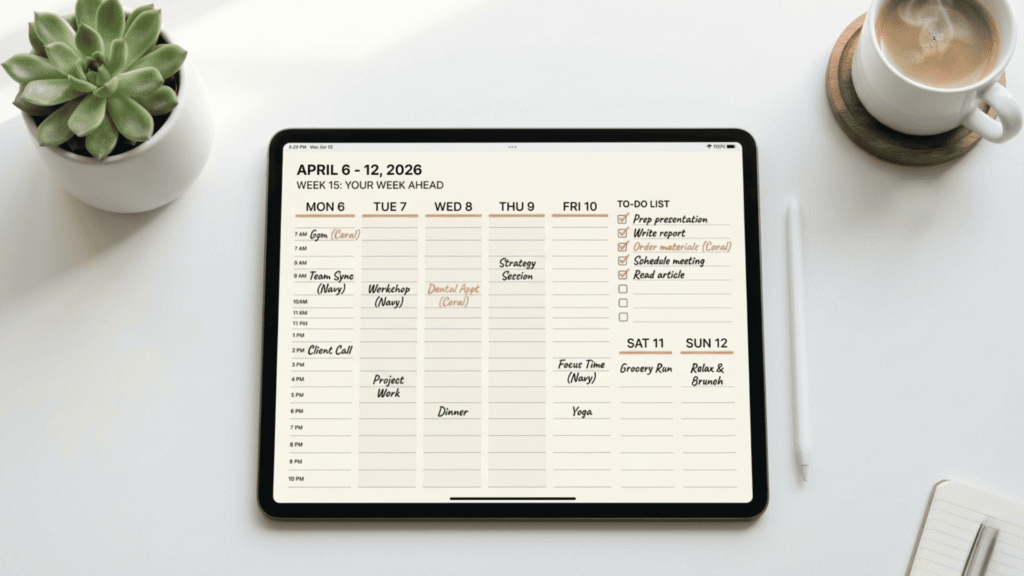
If you’ve tried planning on paper and felt overwhelmed, or used a planner app that felt too slow — you’re not alone.
For ADHD brains, friction matters more than features. A digital planner for iPad removes that friction entirely, turning planning from something you avoid into something you actually do.
The right iPad planner doesn’t make you plan more. It makes planning fast enough that you actually want to.
Why ADHD brains need a different kind of planner
Traditional planners — paper or digital — ask you to scroll endlessly to find what you need, make decisions about where things go, and maintain systems that take 20+ minutes every day.
For ADHD brains, those friction points are deal-breakers. If planning takes too long, feels too complicated, or requires too many decisions, you’ll skip it. Every single day.
An ADHD-friendly digital planner for iPad removes that friction by making planning fast, simple, and easy to restart — even after a few days off.
What makes a digital planner actually work for iPad users with ADHD?
The best iPad planners share three traits:
1. Hyperlinked navigation (not endless scrolling)
You tap a link and jump instantly to the page you need. No scrolling. No searching. No “where was that section again?” This alone can cut your planning time in half. Not sure of the difference between a hyperlinked and a regular PDF planner? Read: Hyperlinked vs. Static Planners.
2. Works with tools you already have
You don’t have to learn a new app. Use GoodNotes, Notability, or any PDF annotation app you already know — and write with your Apple Pencil like normal. No new systems to figure out. Need help setting it up? Read: How to Use a Digital Planner on iPad.
3. Flexible enough to adapt as your needs change
ADHD means your needs shift. A good planner lets you duplicate pages, swap sections, and reorganize without breaking the whole system.
How to use an iPad planner without abandoning it
Start with one view
Don’t try to use monthly + weekly + daily + habit tracker all at once. Pick either Weekly or Daily and use only that for 7 days without changing anything.
Keep it light
Write only what you actually need: 3 big priorities, maybe a habit or two, nothing more. Complexity kills consistency. Learn more about why the system works: Hyperlinked Digital Planner for ADHD. If you find yourself frozen before you even open the planner, that’s ADHD task paralysis — and it’s fixable.
Plan once, review twice
Spend 5 minutes planning your week on Sunday. Then do a 2-minute check-in each morning. That’s the whole system.
The ADHD sweet spot: Use your iPad planner for the what and when — your schedule, priorities, habits. Pair it with a simple note-taking app for the why — reflection, brain dumps, ideas. They work together, not as competitors.
If time itself feels invisible rather than just busy, read: ADHD Time Blindness
GoodNotes vs Notability: which app works better for an ADHD planner?
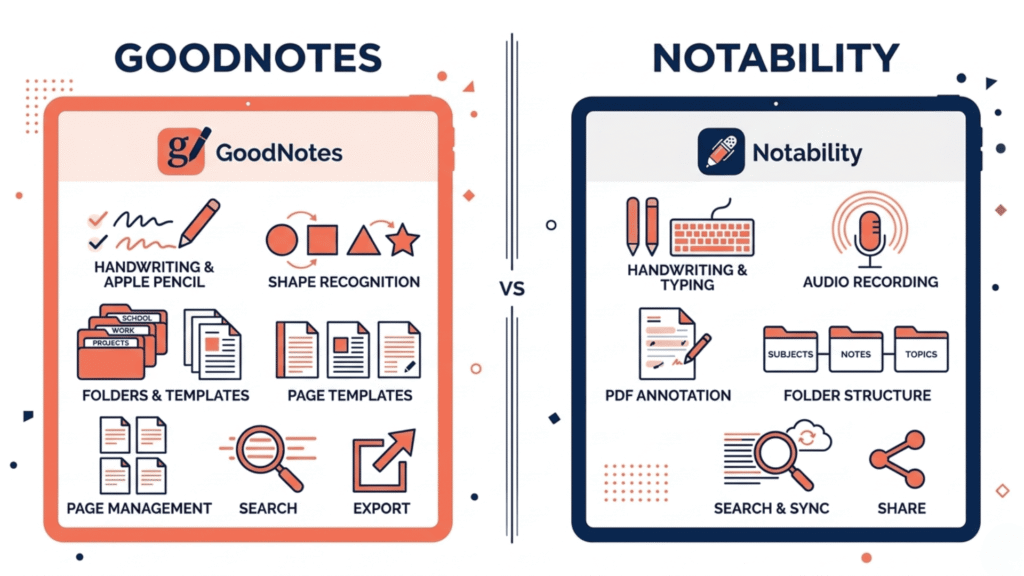
GoodNotes is better for handwriting, organization, and speed. Hyperlinks work smoothly, and handwriting feels natural. Most ADHD users find it the easier starting point.
Notability is better for rich annotations, colour coding, and flexibility. Slightly more features, but a little slower to navigate.
Either works well. Pick the one you already use — or the one that feels more natural to write in. For a full breakdown of every app option, see: Best Apps for Digital Planning
The mistakes that kill most iPad planner systems
Trying to use every feature at once
Start with one section. Add more only after you’ve used it consistently for at least two weeks.
Over-customising before you know what you need
Use the planner as-is for one full week. Then decide what to change.
Treating it like a paper planner
You don’t need to write everything down. Hyperlinks mean you can jump fast — so keep notes short and scannable.
What changes when the system actually fits your brain
- Planning happens because it’s fast enough to fit into your routine
- You stop losing pages because hyperlinks take you directly there
- Handwriting keeps you focused — no endless scrolling or typing
- Your planner adapts as your needs change
- No subscriptions, no notifications, no friction