
Planner Basics
Updated on March 2026 | 5 min read
How to Import a Planner into GoodNotes on iPad
Just downloaded a digital planner and not sure how to open it in GoodNotes? This guide walks you through the full import process, from your Files app to your first hyperlink tap, in under five minutes.
HyperPlanners
Digital Planning Guides
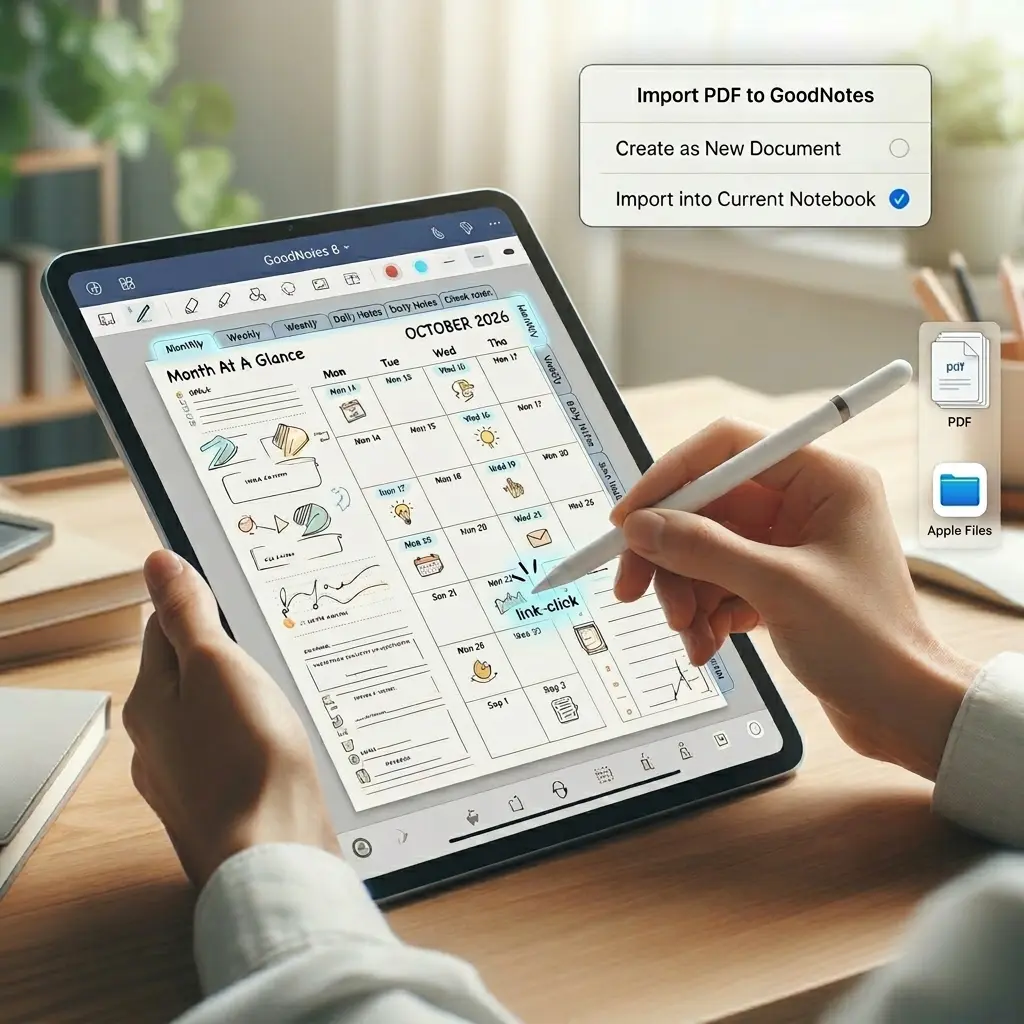
You’ve got the planner, you’ve got GoodNotes. Here’s exactly how to connect them, and how to make every hyperlink work the moment you open it.
What you need before starting
Make sure you have all four of these ready before you begin. The whole process takes under five minutes once everything is in place.
Your iPad
Any model, Air, Pro, Mini, or standard
GoodNotes app
Your planner PDF
From your email or Gumroad download link
Apple Pencil or stylus
Optional, your finger works just as well
Don’t have a planner yet? Grab the free 85-page sample it’s the perfect file to practice with before importing a full planner.
Step-by-step import guide
Step 1:
Download the planner PDF to your Files app
Tap your download link from email or Gumroad. When the PDF opens in Safari, tap the share icon → Save to Files. Choose iCloud Drive or On My iPad, either works.
💡 Create a “Digital Planners” folder in Files to keep all your planner PDFs in one place. Much easier to find later.
Step 2:
Import into GoodNotes
Open GoodNotes. Tap the “+” button in the top right corner → choose Import. Navigate to your Files app, find the planner PDF, and tap it. GoodNotes opens it as a new notebook automatically — no extra steps needed.
Step 3:
Switch to Read-Only mode to activate hyperlinks
This is the most important step. Hyperlinks only work in Read-Only mode — not while the pen tool is active.
Tap the crossed-out pen icon in the top-right toolbar. You’re now in Read-Only mode. Tap any navigation tab, any date on the monthly calendar, or any button — it will jump to that page instantly.
✏️ To write or draw, tap the pen icon again to switch back to Pen Mode. Switch between the two as needed — it becomes automatic within a few sessions.
Step 4:
Start planning
Tap the Monthly tab to see your full month. Tap any date to jump to that day’s page. Tap the Weekly tab to see the week ahead. Use the pen tool to write, the highlighter to mark priorities, and the lasso tool to move or resize anything.
That’s the whole system. You’ve mastered it.
Bonus tips for getting the most out of GoodNotes
Once your planner is imported and hyperlinks are working, these four habits will make your setup even faster.
Why Aren’t My GoodNotes Hyperlinks Working?
My hyperlinks aren’t working when I tap them
You’re in Pen Mode. Tap the crossed-out pen icon in the top-right toolbar to switch to Read-Only mode — hyperlinks only activate there. This catches almost everyone the first time.
The PDF isn’t showing in my Files app
It may have opened as a Safari preview instead of saving. Go back to the download link, tap and hold the file → Download Linked File. Then check the Downloads folder in Files.
GoodNotes isn’t showing an Import option
Make sure you’re tapping the “+” button from the main library screen, not from inside an existing notebook. The Import option only appears from the library.
The planner looks blurry or low resolution
Let the file fully load — GoodNotes renders pages progressively on first open. If it stays blurry, the file may have been corrupted during download. Re-download from your original Gumroad link.
Don’t have a planner yet?
The best way to practice this import process is with a real planner. Try the free 85-page sample — it has full hyperlinks active, so you can test every step in this guide right away.
Free Sample
Try a fully hyperlinked planner before you buy
Daily, weekly, monthly, meals, fitness, and finance pages. All hyperlinks active on download. Normally $5.99 — free with code BLOGFREE2026.
Ready for the full system?
The Complete 2026 Planner — 590+ hyperlinked pages.
You’ve got GoodNotes set up, now fill it with a planner built for it. Daily, weekly, monthly, goals, budget, and habits. Every section one tap away from the moment you import it.
Planner Basics
What is a Hyperlinked Planner? The Beginner’s Guide
Everything you need to know about hyperlinked planners — how they work, who they’re for, and how to get started.
Planner basics
Hyperlinked vs. Static Planners | The Full Comparison
Side-by-side breakdown of every difference. Which one is right for you?
Productivity
Five Digital Planner Habits That Actually Stick
The daily routines that turn a downloaded planner into a system you actually use.