What is a Hyperlinked Planner? The Ultimate Beginner’s Guide (2026)
You’ve heard people rave about digital planners, but when you downloaded one, you spent more time scrolling through hundreds of pages than actually planning. Sound familiar?
That’s the exact problem hyperlinked planners solve.
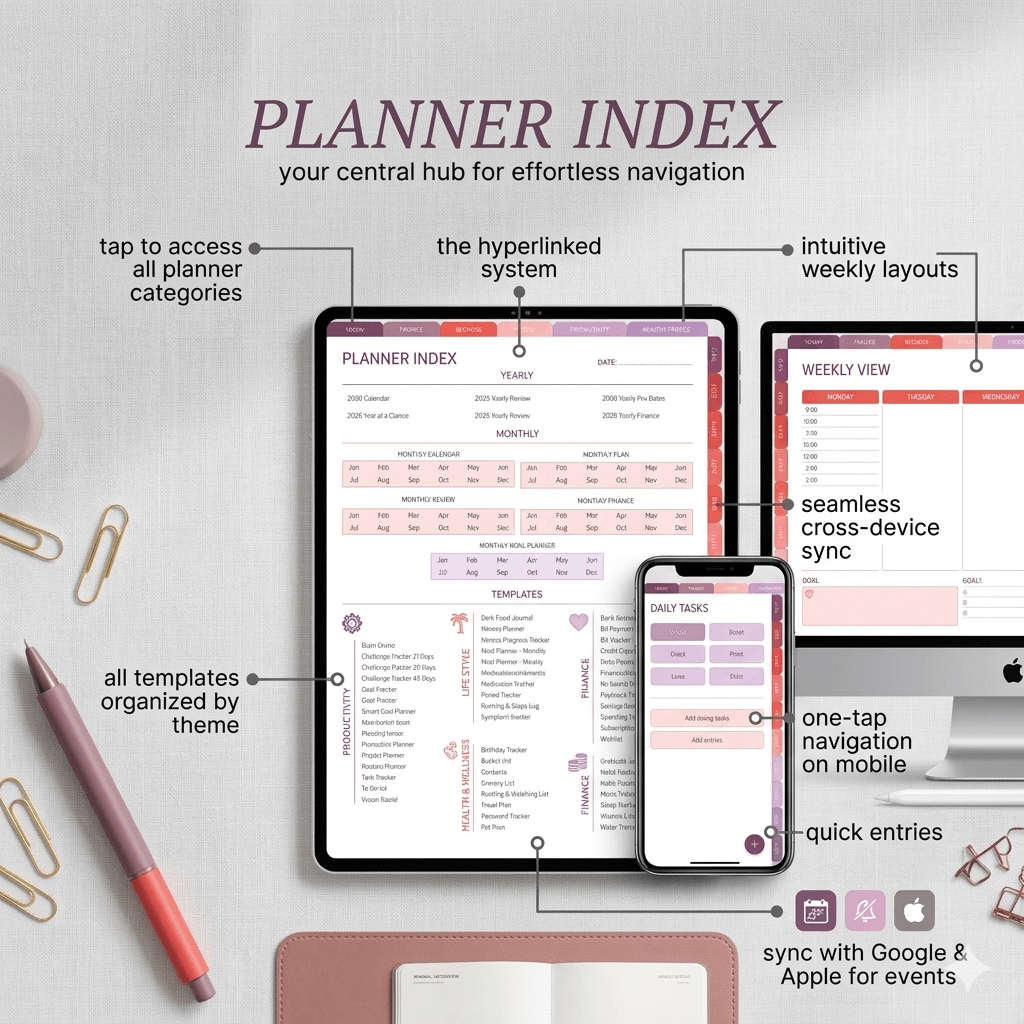
A hyperlinked planner isn’t just a digital PDF—it’s a smart planning system with built-in navigation that lets you jump instantly between dates, sections, and pages. No more endless scrolling. No more getting lost. Just tap and plan.
If you’re new to digital planning or frustrated with static PDFs that feel clunky, this guide will show you exactly what hyperlinked planners are, how they work, and why thousands of people are switching to them.
Let’s dive in.
What Exactly Is a Hyperlinked Planner?

A hyperlinked planner is a digital PDF file designed with clickable navigation links embedded throughout the document—similar to how you click links on a website to jump between pages.
In simple terms: It’s a digital planner with built-in shortcuts.
Instead of manually scrolling through 365+ pages to find June 15th, you tap a button and land there instantly. Instead of hunting for your habit tracker, you click a tab and you’re there in one second.
Think of it like this:
- Regular PDF planner: A book with no table of contents or page numbers
- Hyperlinked planner: A book with instant teleportation to any page
How Does a Hyperlinked Planner Work?
Hyperlinked planners use embedded hyperlinks (the same technology as website links) placed on specific elements throughout the PDF:
Common Hyperlinked Elements:
1. Navigation Tabs Clickable tabs at the top or side of each page that take you to:
- Monthly overview
- Weekly spreads
- Daily pages
- Notes sections
- Habit trackers
- Goal pages
2. Calendar Dates Click any date on your monthly calendar and jump directly to that day’s page.
3. “Today” Button A quick-access button (usually on every page) that takes you to the current date instantly.
4. “Back” or “Home” Buttons Return to your main dashboard or previous page with one tap.
5. Section Links Jump between different planning sections:
- From weekly view → specific daily page
- From goals page → action plan
- From index → any section
The Technical Side:
When a planner creator designs a hyperlinked PDF, they’re adding invisible clickable areas (called hotspots) on top of buttons, tabs, or text. When you tap these areas, the PDF’s built-in navigation tells your app to jump to a specific page number.
You don’t need to understand the tech, you just need to know it works seamlessly.
What’s the Difference Between Hyperlinked and Static Planners?
Not all digital planners are created equal. Here’s the breakdown:
Hyperlinked Planner:
✅ Clickable navigation tabs and buttons
✅ Instant jumps to any date or section
✅ “Today” button for quick access
✅ Back buttons to return to previous pages
✅ Calendar dates link to daily pages
✅ Feels like using an app, not a PDF
Best for: Anyone who wants efficiency and ease of use
Static Planner (Basic PDF):
❌ No clickable navigation
❌ Must scroll manually through all pages
❌ No quick way to jump to today’s date
❌ Feels like reading a long document
❌ Time-consuming to navigate
Best for: Printing on paper (not digital use)
Quick Comparison Table:
| Feature | Hyperlinked Planner | Static PDF Planner |
|---|---|---|
| Navigation | Click/tap to jump | Scroll manually |
| Speed | Instant access | Slow, time-consuming |
| Find Today | One-tap “Today” button | Scroll and search |
| User Experience | Smooth, app-like | Clunky, document-like |
| Best Use | Daily digital planning | Printing to paper |
| Price | Usually $10-25 | Often free or $5-10 |
Bottom line: If you’re planning digitally (not printing), hyperlinked planners are worth every penny. The time saved pays for itself in the first week.
Want a deeper comparison? Read our full guide: Hyperlinked vs. Static Planners: Which Is Right for You?
Real-Life Example: A Day With a Hyperlinked Planner
Let’s see how this actually works in practice:
Scenario: It’s Monday morning, and you’re planning your week.
With a Hyperlinked Planner:
8:00 AM:
- Open planner app on iPad
- Tap “Today” button → Instantly at Monday, December 9th
- Review your Big 3 priorities (already there from yesterday)
- Tap “Weekly View” tab → See your entire week at a glance
- Notice Friday has a meeting conflict
- Tap Friday’s date on calendar → Jump to Friday’s page
- Adjust schedule, add notes
- Tap “Back” button → Return to Monday
- Ready to start your day
Total time: 2 minutes
With a Static PDF Planner:
8:00 AM:
- Open planner app on iPad
- Scroll… scroll… scroll… looking for December
- Find December monthly page
- Scroll to find Week 2
- Realize you’re on the wrong week, scroll more
- Finally find Monday, December 9th
- Want to check Friday? Scroll forward 4 days
- Lose your place, start scrolling again
- Frustrated, close the app
Total time: 5-7 minutes (and a headache)
The difference? Hyperlinked planners respect your time. Static planners waste it.
Who Should Use a Hyperlinked Planner?
Hyperlinked planners are perfect for anyone who:
Students
- Juggling class schedules, assignments, and exams
- Need quick access to different subjects and due dates
- Want to jump between weekly overviews and daily task lists
- Benefit from fast navigation during study sessions
Busy Professionals
- Managing meetings, projects, and deadlines
- Need to view daily, weekly, and monthly perspectives quickly
- Value efficiency (every minute counts)
- Want a professional tool that doesn’t slow them down
Entrepreneurs & Freelancers
- Planning content calendars, launches, and client work
- Switching between strategy (monthly) and execution (daily)
- Need flexibility to reorganize on the fly
- Benefit from quick reference to goals and trackers
Parents & Families
- Coordinating kids’ activities, appointments, and household tasks
- Need instant access to today’s schedule
- Want to see the week ahead at a glance
- Appreciate anything that saves time
Creative Professionals
- Planning projects, deadlines, and creative work
- Switching between big-picture vision and daily actions
- Need distraction-free, efficient planning
- Want a tool as flexible as their workflow
Anyone New to Digital Planning
If you’re trying digital planning for the first time, a hyperlinked planner makes the transition SO much easier. You’ll actually enjoy using it instead of fighting with it.
What Apps Work With Hyperlinked Planners?
Hyperlinked planners are PDFs, so they work with any app that supports PDF annotation and hyperlinks. Here are the most popular:
For iPad/iPhone (iOS):
GoodNotes (Most Popular)
- Smooth hyperlink navigation
- Excellent handwriting recognition
- Customizable templates
- iCloud sync across devices
- Price: $9.99 one-time
Notability
- Audio recording + notes
- Fast, responsive interface
- Good handwriting feel
- Price: Free (limited) or $14.99/year
Noteshelf
- Natural writing feel
- Great for artistic planners
- Customizable pen options
- Price: $9.99
ZoomNotes
- Infinite canvas option
- Advanced organization
- Price: $7.99
For Android:
Xodo PDF Reader & Editor (Best Free Option)
- Fully supports hyperlinks
- Annotation tools included
- Cloud sync (Dropbox, Google Drive)
- Price: FREE
Samsung Notes (Samsung Devices)
- Pre-installed on Samsung tablets
- Works well with S Pen
- Price: FREE
Squid (formerly Papyrus)
- Natural writing experience
- Good pressure sensitivity
- Price: Free (basic) or $9.99 (pro)
For Desktop (Windows/Mac):
Adobe Acrobat Reader (Free)
- Full hyperlink support
- Best for viewing on computer
- Price: FREE
PDF Expert (Mac)
- Clean interface
- Excellent for MacBooks
- Price: $79.99 (one-time)
Xodo (Windows)
- Same great app, desktop version
- Price: FREE
Need setup help? Check out our complete tutorial: How to Use a Digital Planner on iPad & Android
Hyperlinked Planner FAQs
Q: Can I use a hyperlinked planner on my phone?
A: Technically yes, but it’s not ideal. Phones have small screens, making planning cramped and uncomfortable. Hyperlinked planners are designed for tablets (iPad, Android tablet) or desktop use where you have space to write, navigate, and view your schedule comfortably.
Best experience: iPad (10.2″ or larger) or Android tablet (10″+)
Q: Do I need an Apple Pencil or stylus?
A: Not required, but highly recommended for the best experience.
You CAN:
- Type in text boxes
- Navigate with your finger
- Use without a stylus
But a stylus gives you:
- Natural handwriting feel
- More precise control
- Better overall experience
- Feels like paper (but smarter)
Budget options: Logitech Crayon ($69), generic styluses ($20-40) work great. You don’t need the $129 Apple Pencil (though it’s nice).
Q: Are hyperlinked planners hard to set up?
A: Not at all! Setup takes about 2 minutes:
- Download the planner PDF (from Etsy, Gumroad, or our site)
- Open in your planning app (GoodNotes, Xodo, etc.)
- Start planning — that’s it!
The hyperlinks are already built-in. You don’t configure anything.
First-time setup:
- Download app (if you don’t have one)
- Import planner
- Click a few tabs to see how it works
- Start using it
Total time: 5 minutes, including exploring the features.
Q: Can I use a hyperlinked planner on my computer?
A: Yes! While most popular on tablets, hyperlinked planners work perfectly on Windows or Mac computers using:
- Adobe Acrobat Reader (free)
- PDF Expert (Mac)
- Xodo (Windows)
Pros of desktop use:
- Large screen = great overview
- Good for planning sessions
- Easy typing
Cons:
- Less portable
- No handwriting (unless you have a touch screen)
- Not as convenient for on-the-go planning
Best setup: Use both! Plan on desktop, check on tablet throughout the day.
Q: Do I need internet to use my digital planner?
A: No. Once you download the PDF to your device, it works completely offline. Your planning app (GoodNotes, Xodo, etc.) stores the file locally.
You only need internet for:
- Initial download
- Syncing between devices (optional)
- Downloading updates (if creator offers them)
After that? Airplane mode, no WiFi, no problem. Your planner works anywhere.
Q: Can I print a hyperlinked planner?
A: You CAN, but you’ll lose the main benefit—the hyperlinks only work digitally.
When you print:
- ✅ You get the layouts and design
- ❌ Hyperlinks don’t work on paper (obviously)
- ❌ Navigation tabs become decorative only
- ❌ You lose the efficiency advantage
If you want to print: Buy a printable planner instead (designed for paper, usually cheaper).
If you want digital: Stick with the digital version and enjoy the hyperlinks!
Q: What if I accidentally click a hyperlink?
A: No problem! Every good hyperlinked planner has “Back” buttons on each page. One tap returns you to where you were. Think of it like your browser’s back button—instant undo.
Q: Are hyperlinked planners more expensive than regular PDFs?
A: Usually, yes—but for good reason.
Price ranges:
- Static PDF planners: $5-10 (or free)
- Hyperlinked planners: $10-25
- Premium hyperlinked planners: $25-40
Why the price difference? Creating hyperlinks is time-consuming. Each button, tab, and date must be individually linked to the correct page. It can take 20-40 hours to hyperlink a full yearly planner.
Is it worth it? Absolutely. The time you save in the first month makes up for the cost difference. Plus, you can reuse digital planners year after year (if undated).
Q: Can I customize a hyperlinked planner?
A: Depends on the planner and app:
You CAN:
- Add your own notes and text
- Insert stickers and images
- Change ink colors
- Add extra pages (in some apps)
- Create custom tabs (in GoodNotes Pro)
You CAN’T (usually):
- Change the hyperlink destinations
- Modify the existing layout structure
- Rearrange pages without breaking links
Pro tip: Choose a hyperlinked planner with a layout you love from the start. Customization is for personalization, not redesign.
Q: What happens if I add or delete pages?
A: Be careful! Deleting or adding pages can break hyperlinks because they’re linked to specific page numbers.
Best practice:
- Don’t delete built-in pages
- Add extra pages at the end (for notes, etc.)
- Duplicate existing pages if you need more of something
Most planning apps handle this well, but it’s safest to work within the planner’s structure.
Q: Do hyperlinked planners work with dark mode?
A: Depends on the planner’s design and your app:
- GoodNotes: Has dark mode, but planner pages stay as designed
- Notability: Same—app background is dark, planner is as-is
- Some planners: Come in dark/light versions (buy the dark one)
Most planners have light backgrounds (easier to read/write). If you want dark mode aesthetics, look for planners specifically advertised as “dark mode” or “midnight edition.”
How to Choose Your First Hyperlinked Planner
Ready to try one? Here’s what to look for:
Must-Have Features:
1. Full Hyperlinked Navigation
- Monthly calendar dates clickable
- Weekly tabs accessible from anywhere
- “Today” button on every page
- Back buttons to previous views
2. Compatible With Your Device
- Check if it works with your app (GoodNotes, Xodo, etc.)
- Verify device compatibility (iPad, Android, desktop)
3. Layout That Matches Your Style
- Daily, weekly, or monthly focus?
- Vertical or horizontal orientation?
- Minimal or decorative design?
4. Reasonable File Size
- Under 100MB is ideal (loads faster)
- Over 200MB can be slow on older devices
Where to Find Quality Hyperlinked Planners:
Etsy (Largest Selection)
- Search: “hyperlinked digital planner [year]”
- Filter by reviews (4.5+ stars)
- Read product descriptions carefully
- Check compatibility notes
HyperPlanners (That’s Us! 😊)
- Every planner fully hyperlinked
- Tested on multiple devices
- Clean, minimalist design
- Free sample pages available
Independent Creators
- Many bloggers and designers sell direct
- Often offer better support
- Check their website/shop
Gumroad
- Growing marketplace for digital products
- Good for finding unique designs
Red Flags to Avoid:
❌ “PDF planner” without “hyperlinked” mentioned (probably static)
❌ No preview images (can’t see navigation)
❌ Unclear compatibility (might not work with your app)
❌ File over 300MB (unnecessarily large)
❌ No reviews or ratings (new seller, untested product)
What Makes HyperPlanners Different?
You’re probably wondering: “Why should I choose a HyperPlanners digital planner over the hundreds on Etsy?”
Fair question. Here’s what makes us different:
Designed for Actual Use, Not Just Aesthetics
We believe a planner should help you get things done, not just look pretty in screenshots.
Our design philosophy:
- ✅ Clean, distraction-free layouts
- ✅ Every feature has a purpose
- ✅ Intuitive navigation (no learning curve)
- ✅ Fast-loading files (optimized sizes)
- ✅ Works smoothly on all devices
We skip:
- ❌ Excessive decoration that slows you down
- ❌ Cluttered pages with unused sections
- ❌ Overly complex navigation
- ❌ Bloated file sizes
Superior Hyperlink Architecture
Not all hyperlinked planners are equal. Many creators add basic hyperlinks as an afterthought. We design the entire planner around navigation efficiency.
Every HyperPlanners planner includes:
- “Today” button on EVERY page (not just the index)
- Multiple navigation paths (tabs, calendar, quick links)
- Back buttons that remember where you came from
- Logical flow between sections
- Tested on 5+ apps before release
Universal Compatibility
Our planners work seamlessly on:
- ✅ iPad (GoodNotes, Notability, Noteshelf, etc.)
- ✅ Android (Xodo, Samsung Notes, Squid)
- ✅ Desktop (Windows, Mac)
- ✅ All screen sizes and orientations
One purchase, use anywhere. No separate versions needed.
Try Before You Commit
Not sure if hyperlinked planning is for you? We offer:
- Free sample pages (download now)
- Free daily planner template
- Full preview images (see before buying)
- No email required for free downloads
Try it risk-free. If you love it (you will), upgrade to the full planner.
👉 Download Your Free Hyperlinked Daily Planner →
Built by Planners, For Planners
We’re not just designers—we’re daily digital planning users. Every feature in our planners solves a real frustration we’ve experienced:
- “I wish I could jump to today faster” → Added universal Today button
- “I keep getting lost in my planner” → Created breadcrumb navigation
- “This is too slow on my older iPad” → Optimized file sizes
- “I don’t need all these extras” → Stripped to essentials
Our planners are the ones we actually use every day.
Ready to Try a Hyperlinked Planner?
The best way to understand hyperlinked planners is to experience one yourself.
Start here:
Option 1: Try Free First (Recommended for Beginners)
Download our free hyperlinked daily planner page and see how navigation works:
What’s included:
- Fully functional hyperlinked daily page
- Navigation tabs to explore
- “Today” button demonstration
- Works on all devices
Time to try: 5 minutes
Cost: $0
Risk: Zero
Option 2: Browse Our Full Planners
Ready for a complete planning system? Explore our collection:
See All Hyperlinked Planners →
Our most popular:
- Daily Focus Planner (For detailed planning)
- Weekly Overview Planner (For big-picture thinkers)
- Student Success Planner (For academic planning)
- Entrepreneur Planner (For business & content planning)
All include:
- Full hyperlinked navigation
- Monthly, weekly, and daily views
- Habit trackers and goal pages
- “Today” buttons everywhere
- Lifetime access (buy once, use forever)
Option 3: Learn More First
Not quite ready? Check out these resources:
How to Set Up a Digital Planner (Step-by-Step Tutorial) →
Hyperlinked vs. Static Planners: Complete Comparison →
Best Apps for Digital Planning in 2025 →
5 Daily Habits to Actually Use Your Digital Planner →
Final Thoughts: Why Hyperlinked Planners Are Worth It
Switching to a digital planner can feel like a big change—especially if you’ve used paper for years. But once you try a well-designed hyperlinked planner, you’ll wonder how you ever managed without it.
Here’s why thousands of people are making the switch:
✅ Save Time: No more scrolling or flipping pages
✅ Stay Organized: Jump to any date or section instantly
✅ Reduce Frustration: Navigation that actually works
✅ Increase Productivity: Spend time planning, not searching
✅ Go Paperless: Eco-friendly and always accessible
✅ Customize Easily: Add notes, stickers, highlights
✅ Never Run Out: Unlimited space for notes
The bottom line: A hyperlinked planner isn’t just a digital version of a paper planner—it’s a fundamentally better way to plan.
Still have questions? Drop a comment below or reach out—we’re here to help you find the perfect digital planning solution!
Related Articles
📌 Hyperlinked vs. Static Planners: The Ultimate Comparison
📌 How to Use a Digital Planner on iPad & Android (Setup Guide)
📌 Best Apps for Digital Planning in 2025
📌 5 Digital Planner Habits That Actually Work
📌 Best Digital Planners for 2026 (Free & Paid Comparison)
At HyperPlanners, we believe planning should be effortless, not exhausting. That’s why we build hyperlinked digital planners that actually respect your time. Explore our free samples and see the difference for yourself.